
Documentation menu
How to block ads and trackers in every app on Windows 11
A browser extension blocks ads and trackers only inside that browser. Other apps on your PC, such as games, mail and chat apps, the Start menu and Windows itself, keep contacting ad and tracking servers. To cover every app, block the servers at the point that all apps share: the lookup of the server's name.
This guide compares three ways to do that on one Windows 11 PC, without a second device such as a Raspberry Pi and without changing your router.
How blocking by name works
Before an app connects to a server such as ads.example.com, it asks for the server's address. This
is a DNS lookup. When the lookup gets no answer, the app cannot connect, and the ad or the tracking
request never leaves your PC.
A block list is a long list of such server names, kept up to date by people who collect ad, tracker and scam domains.
All three ways below work like this, and so all three have the same limits:
- Ads that come from the same server as the content are not blocked. Video ads on YouTube are the best-known example. Only a browser extension can remove those.
- A page can show an empty box where a blocked ad would have been. A browser extension also hides the box.
- A list can block something you need, such as a sign-in page or a shop's tracking link in an e-mail. You need an easy way to see what was blocked and to allow it.
For browsing, a good browser extension and blocking by name work well together. The extension cleans up pages. Blocking by name covers everything else on the PC.
Way 1: the hosts file
Windows has a file that overrides DNS lookups: C:\Windows\System32\drivers\etc\hosts. A line such
as 0.0.0.0 ads.example.com makes that name unreachable for every app.
- Start Notepad as administrator: open the Start menu, type
Notepad, and choose Run as administrator. - Choose File › Open and open
C:\Windows\System32\drivers\etc\hosts. Set the file type to All files to see it. - Add one line per server name and save the file.
What to know:
- It costs nothing and needs no extra software.
- Each line covers exactly one name.
0.0.0.0 example.comdoes not coverads.example.com, so lists for the hosts file are very long. - Nothing keeps the file up to date. You download a new list and replace the file yourself.
- Windows does not tell you what was blocked. When a website breaks, you search the file by hand.
- Very large hosts files are known to slow down name lookups on some PCs.
- Security software may warn about a changed hosts file, because malware changes it too.
The hosts file is fine for a handful of names. It is hard work for a list with a hundred thousand entries that changes every day.
Way 2: a filtering DNS service
Some DNS services refuse to answer lookups for ad and tracker domains. You tell Windows to use such a service instead of your internet provider's DNS server.
- Open Settings › Network & internet, and choose Wi-Fi or Ethernet. For Wi-Fi, then open the properties of your network.
- Next to DNS server assignment, click Edit.
- Choose Manual, turn on IPv4, and enter the addresses that the DNS service publishes. Windows 11 can also encrypt the lookups there, when you enter the service's DNS over HTTPS address.
What to know:
- It covers every app, and the service keeps its lists up to date.
- You set it for each network connection. A new Wi-Fi network starts with its own DNS server again, unless you change it there too.
- The service sees every name your PC looks up. Choose one you trust.
- With a free service you usually cannot choose the lists, see what was blocked on your PC or allow a single domain. Services that offer this need an account, and some charge for it.
Way 3: NetworkTuna's domain blocker
NetworkTuna is a Windows app that detects suspicious network activity around your PC and blocks unwanted connections. Its Domain blocker checks the DNS lookups of every app against block lists on your own PC.
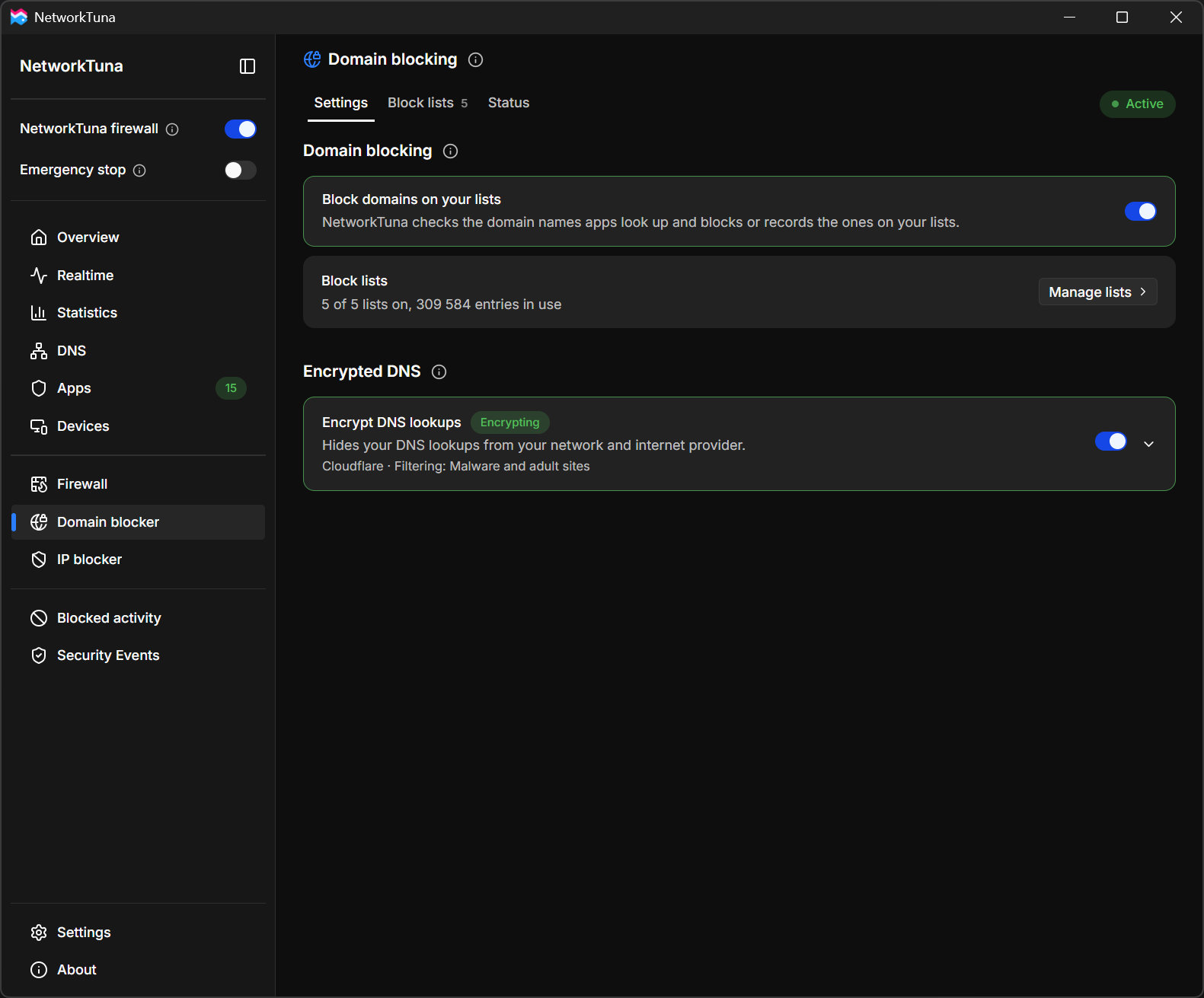
- Install NetworkTuna and choose Domain blocker in the sidebar.
- On the Settings tab, turn on Block domains on your lists.
- Click Manage lists, then Add list › Predefined list. Add one list from the Ads and trackers tab. Start with a normal level, because stricter levels may stop parts of websites from working.
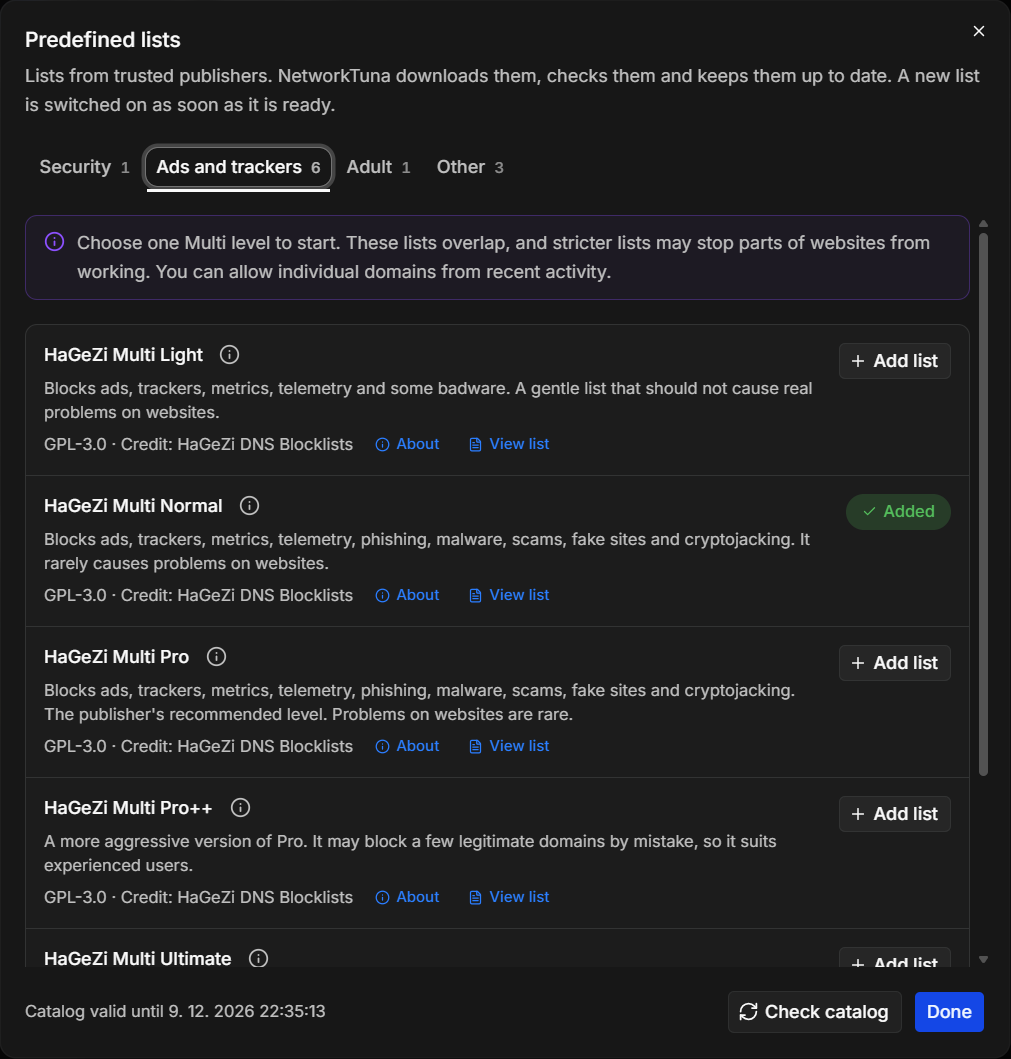
NetworkTuna downloads the list from its publisher and checks for updates about once a day. Browsers and Windows remember recent lookups, so restart your apps to apply the list right away.
What you get compared with the first two ways:
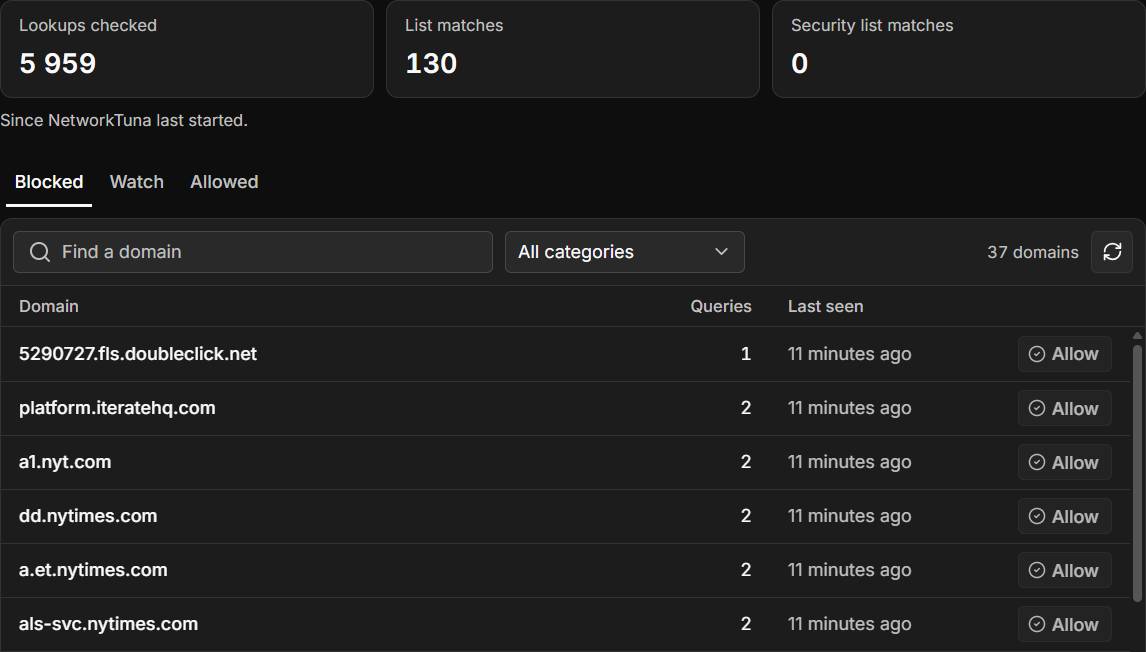
- You see what was blocked. The Status tab lists the blocked domains of the last 7 days, with the number of lookups and when each was last seen.
- You fix a broken website with one click. Allow next to a blocked domain adds an exception.
- You can try a list first. A list in Watch only mode records its matches without blocking.
- A domain covers its subdomains.
example.comalso blocksads.example.com. - Your lookups stay with the DNS server you already use. The lists are checked on your PC. You can also turn on Encrypted DNS with a provider you choose.
- Lists against scam and malware domains work the same way, and their matches appear as security events.
What it cannot do:
- Domain blocking needs Windows 10 version 2004 or later.
- It does not see lookups that an app encrypts itself, such as a browser with secure DNS turned on. If a blocked site still opens in one browser, look for "secure DNS" or "DNS over HTTPS" in the browser's settings.
- NetworkTuna does not know which app made a blocked lookup.
- It protects this PC only. Phones and TVs on your network need a solution on the router or on a separate device.
- The limits of blocking by name at the top of this guide apply here too.
NetworkTuna has a 14-day trial in which every feature works. After that it is a one-time payment, with no subscription.
Which way to choose
| Hosts file | Filtering DNS service | NetworkTuna | |
|---|---|---|---|
| Covers every app on the PC | Yes | Yes | Yes |
| Lists stay up to date | No | Yes | Yes |
| Shows what was blocked | No | Rarely | Yes |
| Allow one domain | Edit the file | Rarely | One click |
| Who sees your lookups | Your current DNS server | The filtering service | Your current DNS server, or the one you choose |
| Cost | Free | Free or paid | One-time payment, 14-day trial |
- Choose the hosts file to block a few names on one PC.
- Choose a filtering DNS service when you want no extra software and do not need to see what was blocked.
- Choose NetworkTuna when you want to see and control what is blocked on this PC, and also want to know when something on your network probes your PC.