
Documentation menu
Domain blocker
The domain blocker stops apps from reaching websites and servers on your block lists. It works for every app on this PC, browsers included. To open it, choose Domain blocker in the sidebar.
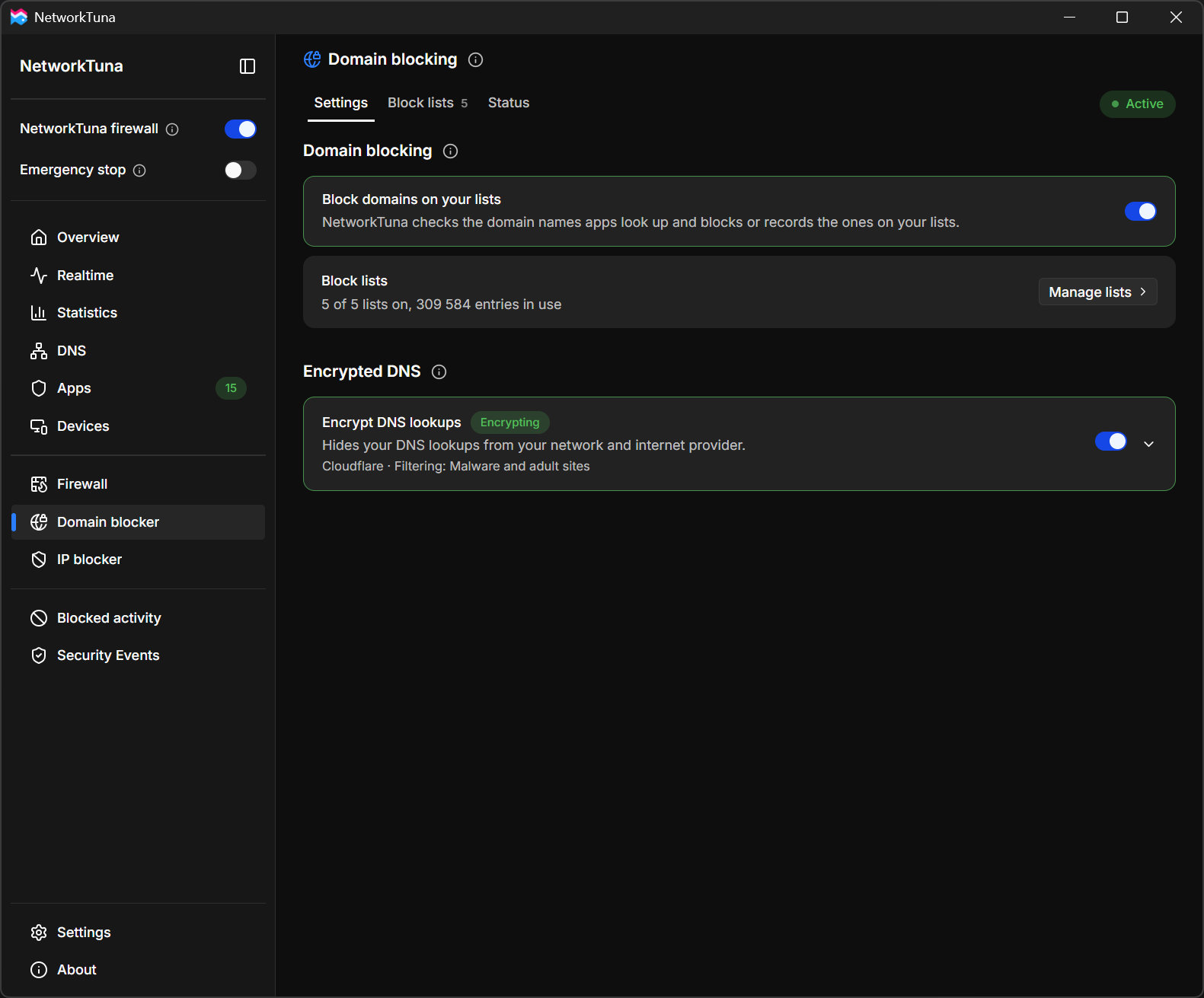
The page has three tabs: Settings, Block lists and Status. The badge at the top right says whether blocking works right now, for example Active, Off or Limited. Point at it for the reason.
How it works
Before an app connects to a server such as ads.example.com, it looks up the server's address.
NetworkTuna checks each lookup against your lists. When the name is on a list that blocks, the app
does not get the address and cannot connect.
A domain on a list also covers its subdomains: example.com also blocks ads.example.com.
NetworkTuna does not change your Windows DNS settings.
Turn on domain blocking
Domain blocking is off until you turn it on.
- On the Settings tab, turn on Block domains on your lists.
- Click Manage lists and then Add list to add a list. See Block lists.
Blocking starts as soon as a list that blocks or watches is on. Until then the badge says Waiting for a list.
Browsers and other apps remember the sites they looked up recently, and so does Windows. A site on your lists can keep opening until it is looked up again. NetworkTuna tells you this once, when domain blocking starts. To apply your lists right away, restart those apps or the PC.
What it covers
- Domain blocking works on Windows 10 version 2004 and later, and on Windows 11. On older Windows the page says that it cannot apply the feature, and your lists stay saved.
- It checks ordinary DNS lookups, which almost all apps use. That includes the lookups browsers such as Brave and Edge sometimes send over TCP.
- It is designed to work alongside VPNs such as Proton VPN and VPN-like apps such as the Cloudflare One Client (WARP). Lookups keep the DNS server and route the VPN or app chose, and NetworkTuna checks them before they leave.
- It does not see lookups that an app encrypts itself, such as a browser with secure DNS turned on. Some browsers turn it on automatically. If a blocked site still opens in one browser, look for "secure DNS" or "DNS over HTTPS" in its settings.
- When Windows itself encrypts DNS lookups on a network, NetworkTuna cannot check them. The badge then says Limited, with "Windows encrypts DNS lookups itself". Turn off encrypted DNS in the Windows network settings, and keep your lookups private with NetworkTuna's Encrypted DNS instead.
- An app that connects to an IP address without looking up a name is not stopped by the domain blocker. Use the IP blocker for addresses.
Block lists
The Block lists tab shows your lists. Each list has a switch, its category, the number of entries and, for a predefined list, when it last changed. A list that does not block shows its mode too, such as Allow exception. The ⋮ button of a list offers Edit entries, Rename or change mode, Check for update and Remove list or Delete list.
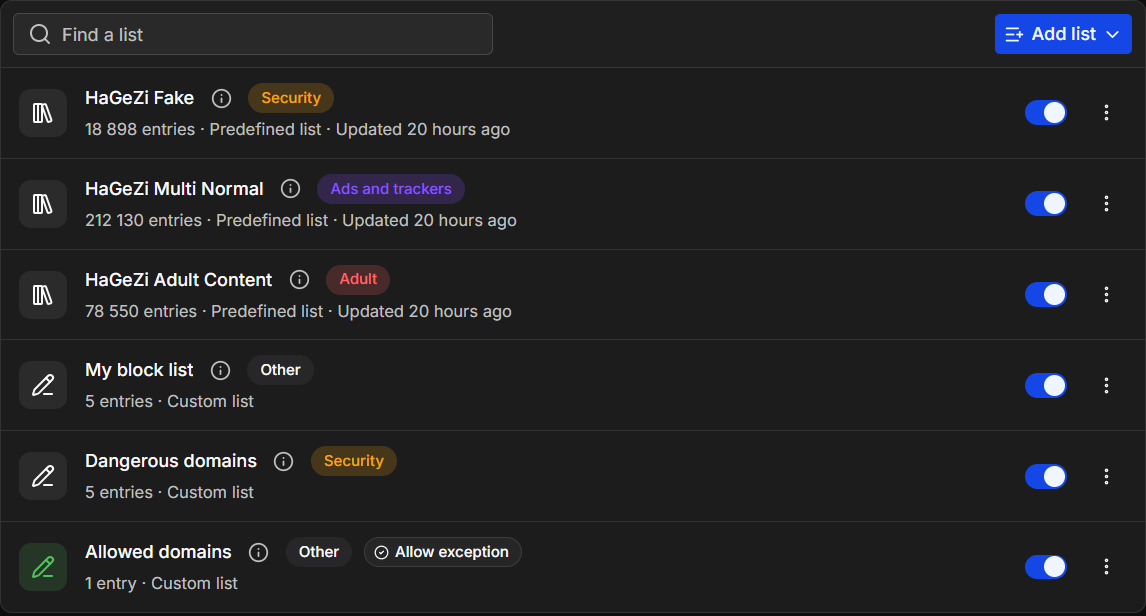
To add a list, click Add list at the right end of the toolbar:
| Choice | What you get |
|---|---|
| Predefined list | A well-known list that NetworkTuna downloads and keeps up to date |
| Create a list | A list of domains you type yourself |
| Import a file | A text or hosts file from this PC |
A new list starts switched on. Lists apply only while domain blocking is on.
What a list does
| Mode | What happens when a lookup matches |
|---|---|
| Block | NetworkTuna blocks it. |
| Watch only | NetworkTuna records the match without blocking. Use it to try a list first. |
| Allow exception | The domain is let through, even when another list blocks it. |
The most specific entry wins: an allowed shop.example.com stays reachable even when a list blocks
example.com. When entries are equally specific, Allow wins. Allow exceptions only override block
lists. App firewall rules and Emergency stop still apply.
Categories
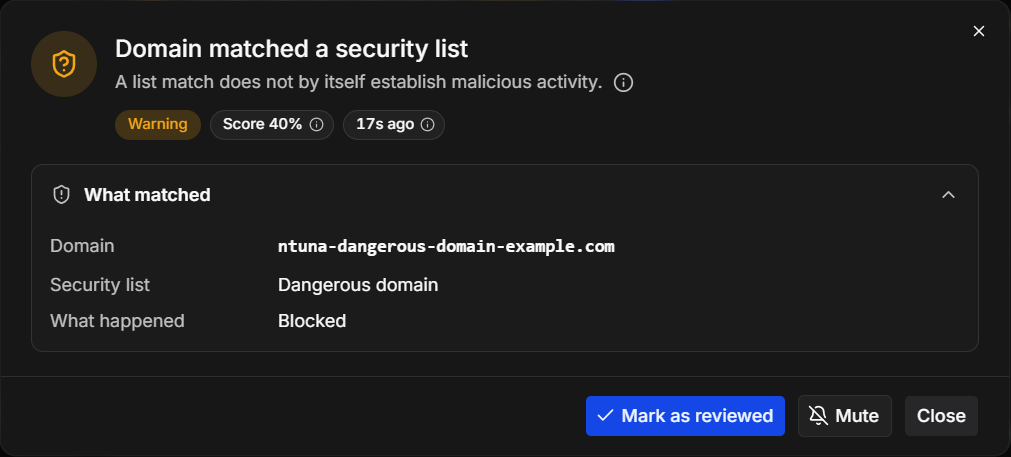
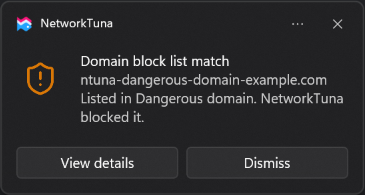
Every list has a category: Security, Ads and trackers, Adult or Other. Matches from Security lists also appear in Security Events, and NetworkTuna notifies you with the domain and the list. A match is not proof of an attack. It means that an app looked up a name on the list. Matches from other categories are only counted on the Status tab.
Predefined lists
Add list › Predefined list shows lists from trusted publishers, such as the HaGeZi DNS blocklists: several levels of lists against ads, trackers and threats, and lists of scam, adult, gambling and social network sites. The tabs at the top group them by category. Click Add list next to a list. About and View list open the publisher's pages.
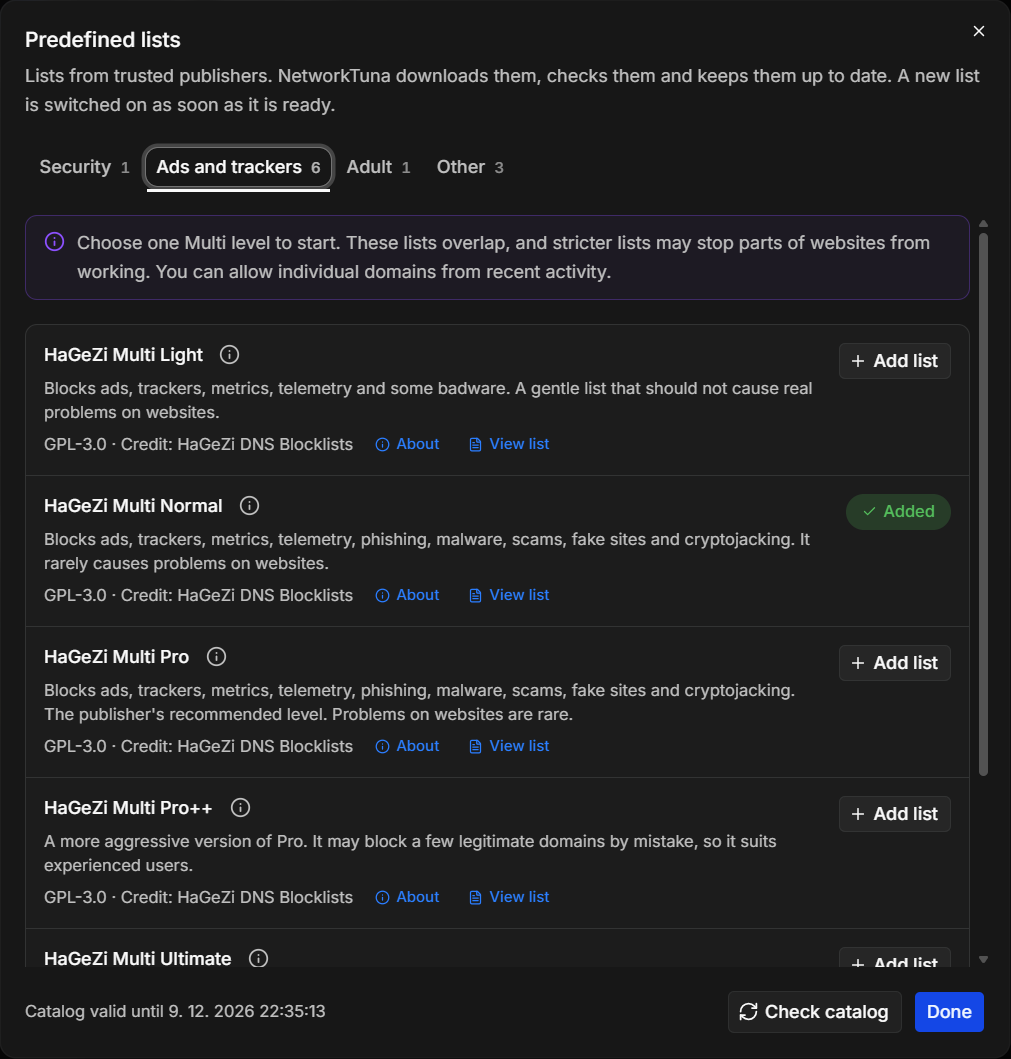
- Start with one Multi level, for example HaGeZi Multi Normal. The levels overlap, and stricter levels may stop parts of websites from working.
- NetworkTuna gets the choice of lists from a catalog signed by DeinitLabs. It downloads each list from its publisher, checks it and switches it on as soon as it is ready.
- Lists are checked for updates about once a day. Updates pause while a list is off.
- When you remove a list, the security events it caused are kept.
Your own lists
Add list › Create a list opens an editor. Give the list a name, choose what it does and its
category, and type one domain per line. Lines starting with # are comments. Check list shows
how many entries NetworkTuna accepted and which lines it skipped. Save list saves it.
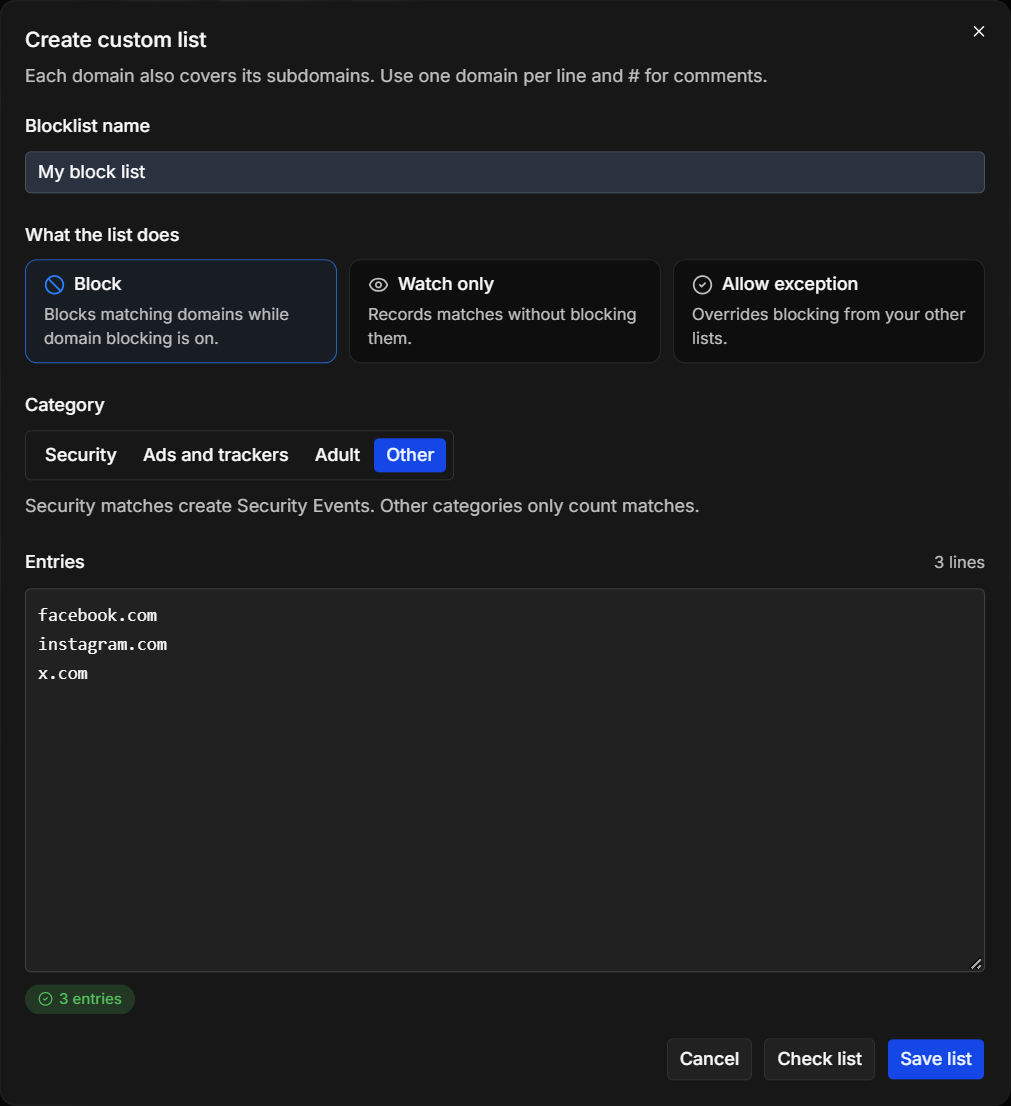
The editor takes lists up to 1 MB. For a larger list, use Import a file. NetworkTuna reads plain lists of domains, hosts files and Adblock-style lists, and keeps its own copy. Your file is not changed.
Status
The Status tab shows what your lists did in the last 7 days.
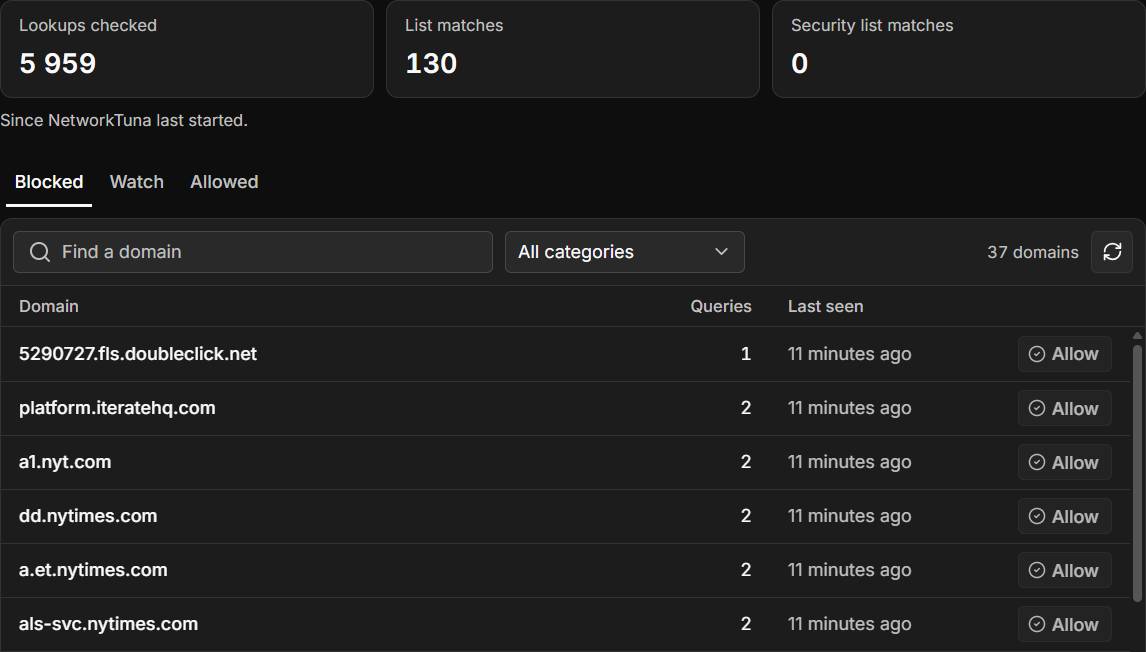
- Blocked, Watch and Allowed list the domains that lists blocked, that Watch only lists matched, and that Allow exceptions let through, with the number of lookups and when they were last seen.
- The counters at the top, such as Lookups checked and List matches, count since NetworkTuna last started.
- Find a domain searches the list, and the category list next to it filters by list category.
- Click a domain to see which lists and which entry matched it, and when it was first and last seen. NetworkTuna does not know which app made the lookup.
- Allow next to a blocked domain adds it to an Allow list. Choose one of your Allow lists or enter a name for a new one. Use it when a list blocks something you need.
Only matches are recorded. Lookups that match no list are not stored.
Encrypted DNS
DNS lookups normally travel unencrypted, so your network and your internet provider can read which sites you visit, or change the answers. Encrypt DNS lookups on the Settings tab sends your lookups to a DNS provider you choose, encrypted with DNS over HTTPS. It works only while domain blocking is on, and your lists still apply. On Windows 10 the setting is not available, because it needs a newer version of Windows.
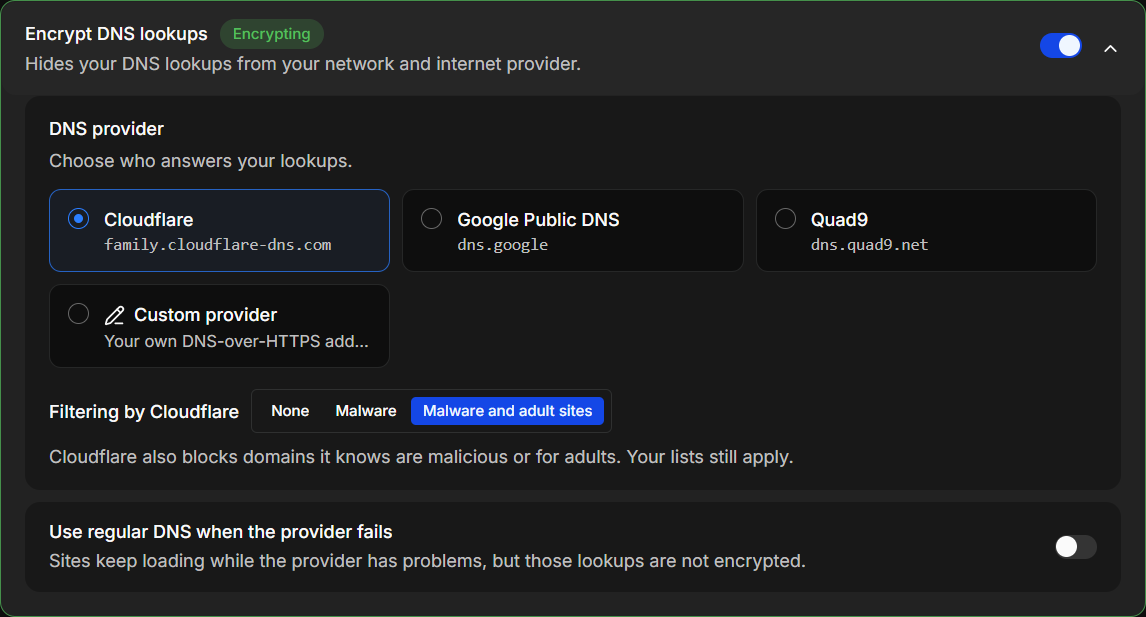
Click the arrow at the right of the row to choose the provider:
| Provider | Filtering you can choose |
|---|---|
| Cloudflare | None, Malware, or Malware and adult sites |
| Google Public DNS | None |
| Quad9 | Malware, or None |
| Custom provider | Your own DNS-over-HTTPS address and the provider's server IP addresses |
A provider's filtering blocks domains it knows are malicious, or for adults too, on top of your lists.
- Windows DNS settings stay as they are. Lookups that a VPN, another DNS app or Windows rules handle keep their own route, and local network names are never sent to the provider.
- The badge on the row says Encrypting while it works. If the provider cannot be reached, it says Interrupted, and lookups the provider cannot answer fail, so some sites may not load. NetworkTuna keeps trying.
- Use regular DNS when the provider fails keeps sites loading during such problems, but those lookups are not encrypted. It is off by default.