
Documentation menu
Security Events
The Security Events page lists everything NetworkTuna detected. To open it, choose Security Events in the sidebar. The number next to it shows how many warnings and alerts need your review. You can also right-click the NetworkTuna icon in the notification area of the taskbar and choose Security events.
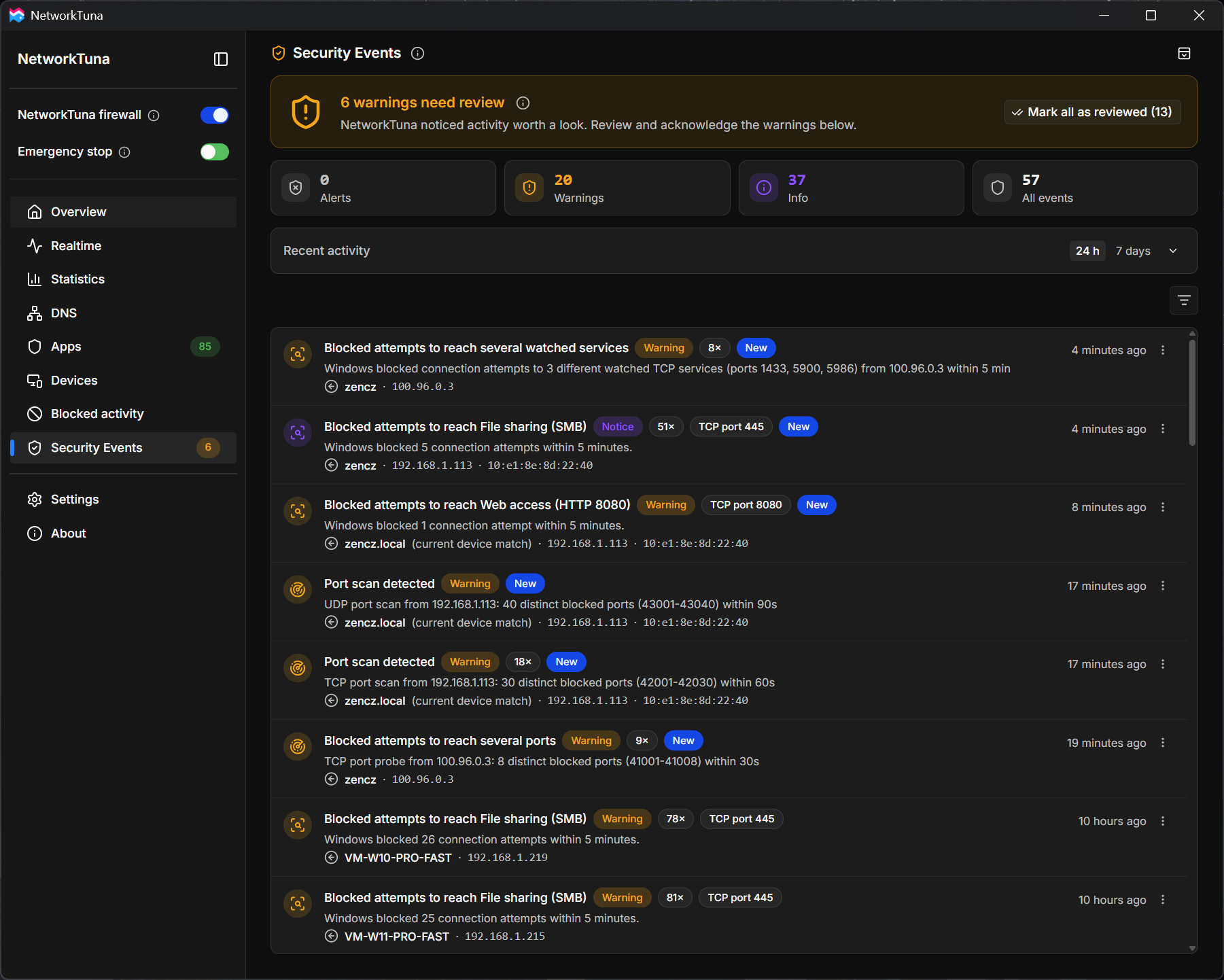
Status
The status at the top of the page tells you whether anything needs your review:
- Your network looks healthy (green): no warnings or alerts need review.
- N warnings need review (amber): NetworkTuna noticed activity worth a look, such as a port scan.
- High-severity alert on your network (red): at least one important event needs your review.
Info and notice events do not change the status. The ⓘ button next to the status title explains how the status works.
Mark all as reviewed at the right end marks every event that needs review as reviewed, including info events. The number on the button shows how many that is.

Counters and recent activity
Below the status, four counters show how many events NetworkTuna keeps: Alerts, Warnings, Info (with notices) and All events. Choose a counter to list only those events.
Recent activity shows when events happened, over the last 24 h or 7 days. Use the arrow at its right end to expand or collapse it.

The event list
Each event shows:
- A title that says what happened, such as Port scan detected or Blocked attempts to reach File sharing (SMB).
- Its level: Info, Notice, Warning or High. See How serious an event is.
- How many times it happened, such as 81×. NetworkTuna adds repeated activity from the same source to one event instead of listing it again.
- The protocol and port for attempts to reach a service, such as TCP port 445.
- New while the event needs your review.
- A short summary, and where the activity came from: the device name when NetworkTuna knows it, the IP address and the hardware (MAC) address.
- When it last happened.
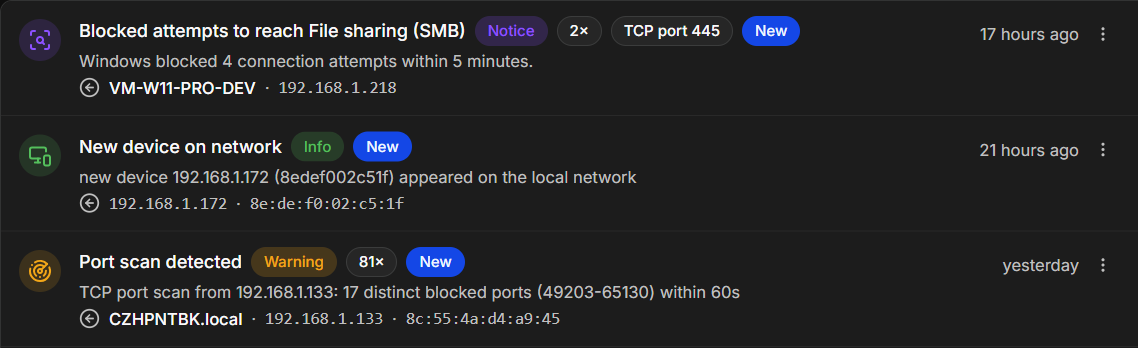
When there are many info events, the list shows the newest ones and says how many there are in total.
Filters
The filter button at the right, above the list, shows only some events: Muted, Needs review, Info, Warnings, Alerts or Warnings and alerts. The active filter appears next to the button. Choose the × in it to show all events again.
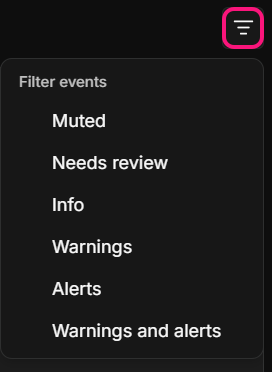
Event actions
The ⋮ button at the right end of an event offers Mark as reviewed and Mute, or Unmute for a muted event.
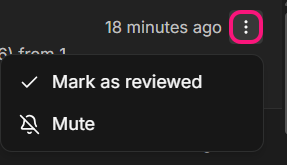
Event details
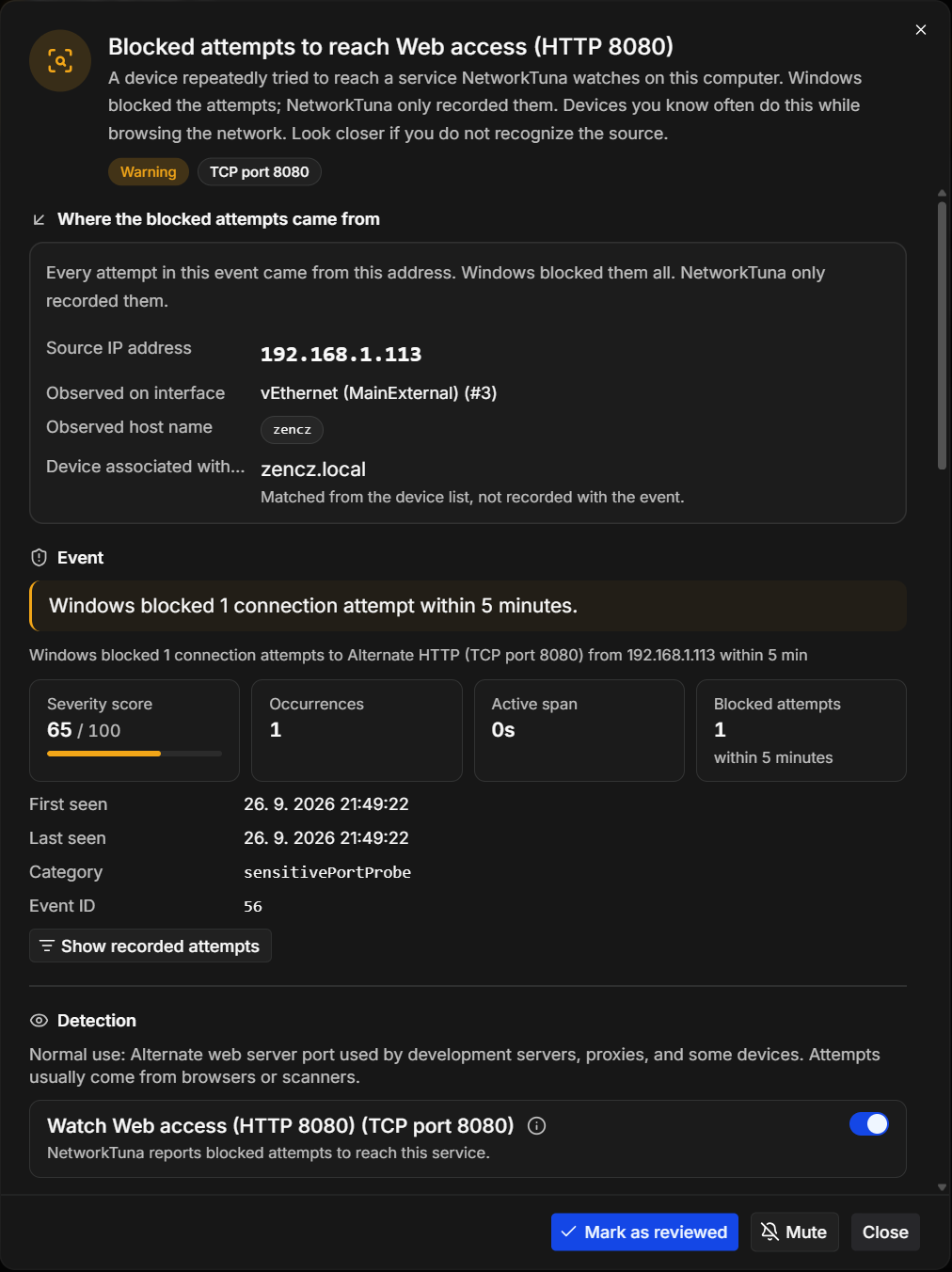
Choose an event to open its details. The top of the window repeats the title and explains what the event means. The sections below depend on the kind of event:
- Where the blocked attempts came from: for port scans and attempts to reach a service, the source IP address, the network adapter the attempts arrived on, the host name the device announced, and the matching device from NetworkTuna's device list, when there is one.
- Event: a summary, such as "Windows blocked 1 connection attempt within 5 minutes", the severity score from 0 to 100, how often the event occurred, how long it lasted, how many attempts Windows blocked, and when the event was first and last seen. Show recorded attempts opens the blocked attempts behind the event on the Blocked activity page, as long as NetworkTuna still keeps them.
- Recent activity: the blocked traffic from the same address in the last 24 hours, by port.
- Detection: for a watched service, what the service is normally used for, and a switch that stops watching this service. See Watched services.
- Device: what NetworkTuna knows about the device, such as its name, whether it is online, and when it was first and last seen.
Router events show the router, the service, the key type, and the remembered and current key. See Router monitoring.
The buttons at the bottom are Mark as reviewed, Mute and Close.
Reviewing events
When you have looked at an event, mark it as reviewed: in its details, or with ⋮ › Mark as reviewed in the list. New disappears, and the status turns green again when no warnings or alerts need review. Mark all as reviewed at the top reviews every event at once.
If the activity happens again, NetworkTuna asks you to review the event again. So does an event that becomes more serious, such as a probe of several ports that grows into a port scan. Repeated activity at info or notice level does not reopen a warning you have already reviewed.
Muting events
Mute an event when you know its cause and do not want to hear about it again, for example a PC in your home that keeps trying to reach file sharing. NetworkTuna keeps recording the activity, but the event no longer needs review and no longer shows notifications.
- To mute an event, choose ⋮ › Mute in the list, or Mute in its details.
- To see muted events, use the Muted filter.
- To unmute an event, choose ⋮ › Unmute.
Muting applies to one event. The same activity from another device is a separate event. To stop a whole kind of detection, turn it off in its settings instead. See Turning detections on and off.
Notifications
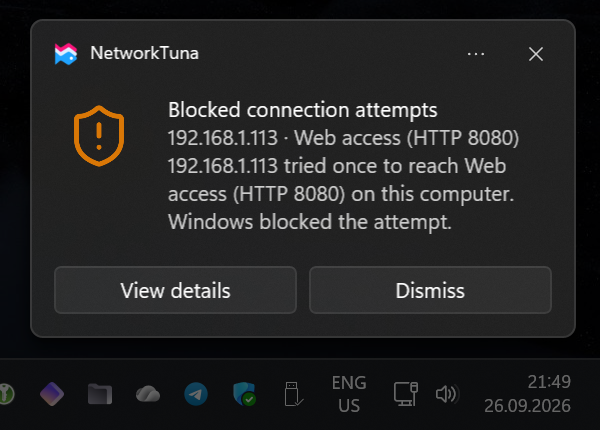
For warnings and high-level events, NetworkTuna shows a Windows notification. Choose View details to open the event in NetworkTuna, or Dismiss to close the notification. Info and notice events never show a notification, and neither do muted events.
A change of the router's hardware address has its own notification setting. See When the router's hardware address changes.