
Documentation menu
Suspicious activity detection
NetworkTuna watches for signs that a device on your network is probing your PC or trying to reach it, and for changes to your router and your local network. It records what it finds, explains it in plain words and tells you when something needs a look.
NetworkTuna looks for:
- Port scans: a device tries many different ports on this PC in a short time.
- Attempts to reach watched services: a device tries to reach services such as file sharing (SMB), Remote Desktop (RDP) or remote access (SSH) on this PC, including attempts that the Windows firewall blocked without telling you.
- Router changes (optional): NetworkTuna checks the SSH and HTTPS security keys of the router this PC uses. It warns when a remembered SSH key changes or when SSH access appears on the router.
- Local network changes: new devices, a router whose hardware address changed, and signs of ARP spoofing, such as two devices claiming the same address.
NetworkTuna works alongside Microsoft Defender Firewall or your preferred Windows firewall. It is an addition, not a replacement.
Where findings appear
Every finding is an event on the Security Events page. For warnings, NetworkTuna also shows a Windows notification.
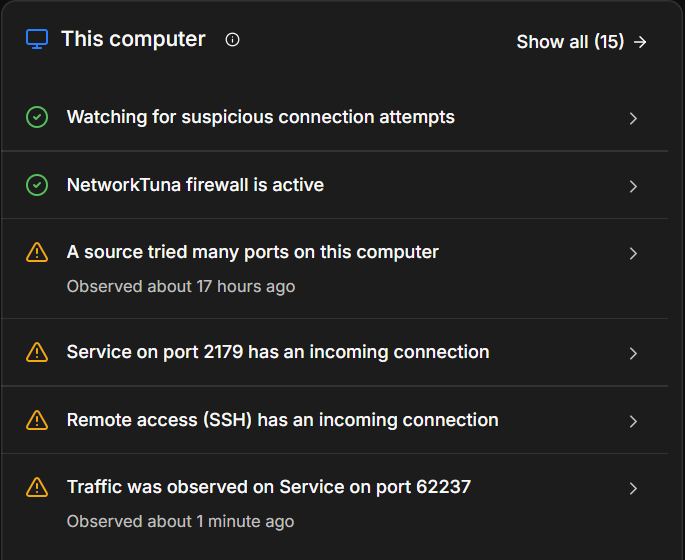
The Overview sums up the current state. Its This computer panel says whether NetworkTuna is watching for suspicious connection attempts and lists what it found recently, such as a device that tried many ports. Its Your network panel shows the router checks.
How serious an event is
Every event has one of four levels:
| Level | What it means | Example | Notification |
|---|---|---|---|
| Info | Something NetworkTuna noticed. Not a warning. | A new device joined the network. | No |
| Notice | Worth knowing, and usually harmless. | A PC you know tried file sharing (SMB) a few times. | No |
| Warning | Worth a look. | A port scan, or an attempt to reach SSH on this PC. | Yes |
| High | Needs your attention. | Two devices claim the address of your router. | Yes |
The counters and filters on the Security Events page call high-level events Alerts.
Attempts from nearby devices
Port scan and watched-service detections work with connection attempts that Windows blocked: no app on this PC was listening on the port, or a Windows firewall rule refused the connection. NetworkTuna records these attempts and looks for patterns in them. It does not block them itself, and turning a detection on or off never changes what Windows blocks.
NetworkTuna considers attempts from:
- Your local network: the private address ranges, such as 192.168.x.x, 10.x.x.x and 172.16.x.x to 172.31.x.x, link-local addresses, and the networks this PC is directly connected to.
- Shared address space 100.64.0.0/10: some Internet providers use it for carrier-grade NAT, and some VPN and mesh networks use it for the devices they connect.
Routine probes from the public Internet do not create events. Servers on the Internet try every address all the time, and warnings about them would hide what happens near you.
NetworkTuna also leaves out traffic it recognizes as normal background traffic, such as late replies to DNS queries and network name broadcasts, and packets that look like replies to this PC's own recent connections.
What a finding means
A finding is evidence, not proof. An attempt to connect is not a successful sign-in, and a changed router key can have an ordinary cause, such as a router reset. NetworkTuna does not decide whether a device is malicious. It tells you what happened, where it came from and how often, so you can decide.
The checks cover what this PC can see. They do not cover traffic between other devices on your network, and router checks do not inspect the router's firmware or prove that it is safe.
When you know the cause, mark the event as reviewed. When you do not, find the device named in the event and check what it is. If the activity is expected and keeps coming back, mute the event.
Turning detections on and off
- Port scan and watched-service detections are on by default. Their settings are in Settings › Security › Detections.
- Router monitoring is off until you turn it on in Settings › Security › Router.
Turning a detection off stops new events of that type. It does not delete earlier events.