
Documentation menu
Connection requests
When an app that needs your decision tries to connect, NetworkTuna holds the connection and asks you whether the app may use the network. With the default settings, these are unsigned apps without a firewall setting, and apps you set to Ask. The default firewall action decides whether apps without a setting are asked about, allowed or blocked.
Notifications
NetworkTuna shows a Windows notification with the app's name, the direction of the connection and the number of attempts. Once NetworkTuna has checked the app's signature, it also says whether the app is signed. When several apps wait, it asks about one app at a time, oldest first, and the notification says how many more apps are waiting.
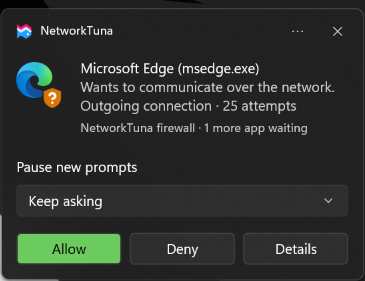
| Button | What it does |
|---|---|
| Allow | Allows the app |
| Deny | Blocks the app |
| Details | Opens the connection request window over the Pending requests tab |
Allow and Deny save a permanent setting for both incoming and outgoing connections in the active firewall profile. To allow an app only for a while, use Details. Closing the notification decides nothing. The app keeps waiting, and the next app takes its turn.
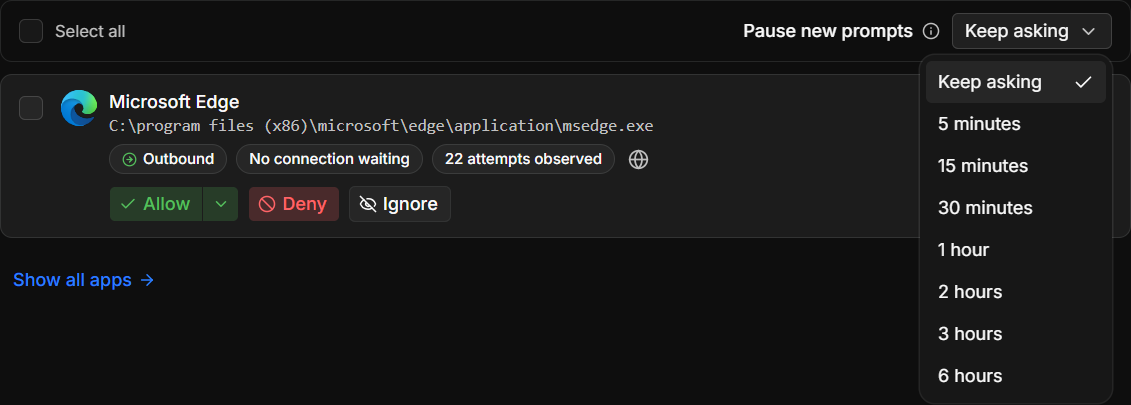
Pause new prompts
When many apps ask at once, for example after you install a new program, you can pause the notifications for a while:
- In a notification, choose a time under Pause new prompts (5, 15 or 30 minutes, or 1 hour) and then click one of the buttons.
- On the Pending requests tab, choose a time in Pause new prompts at the right end of the toolbar (up to 6 hours).
While paused, apps that ask keep waiting and stay blocked, and they appear in Pending requests. When the pause ends, only new requests notify you. The list shows Paused until and the time. To end the pause early, choose Keep asking.
The connection request window
To open the connection request window, click Details in the notification. NetworkTuna opens the window over the Pending requests tab, so the other waiting apps are right there when you close it. The window shows the app's path, publisher, signature, recent addresses and the time of the first and last attempt. When several apps are waiting, choose one under App waiting for a decision at the top.
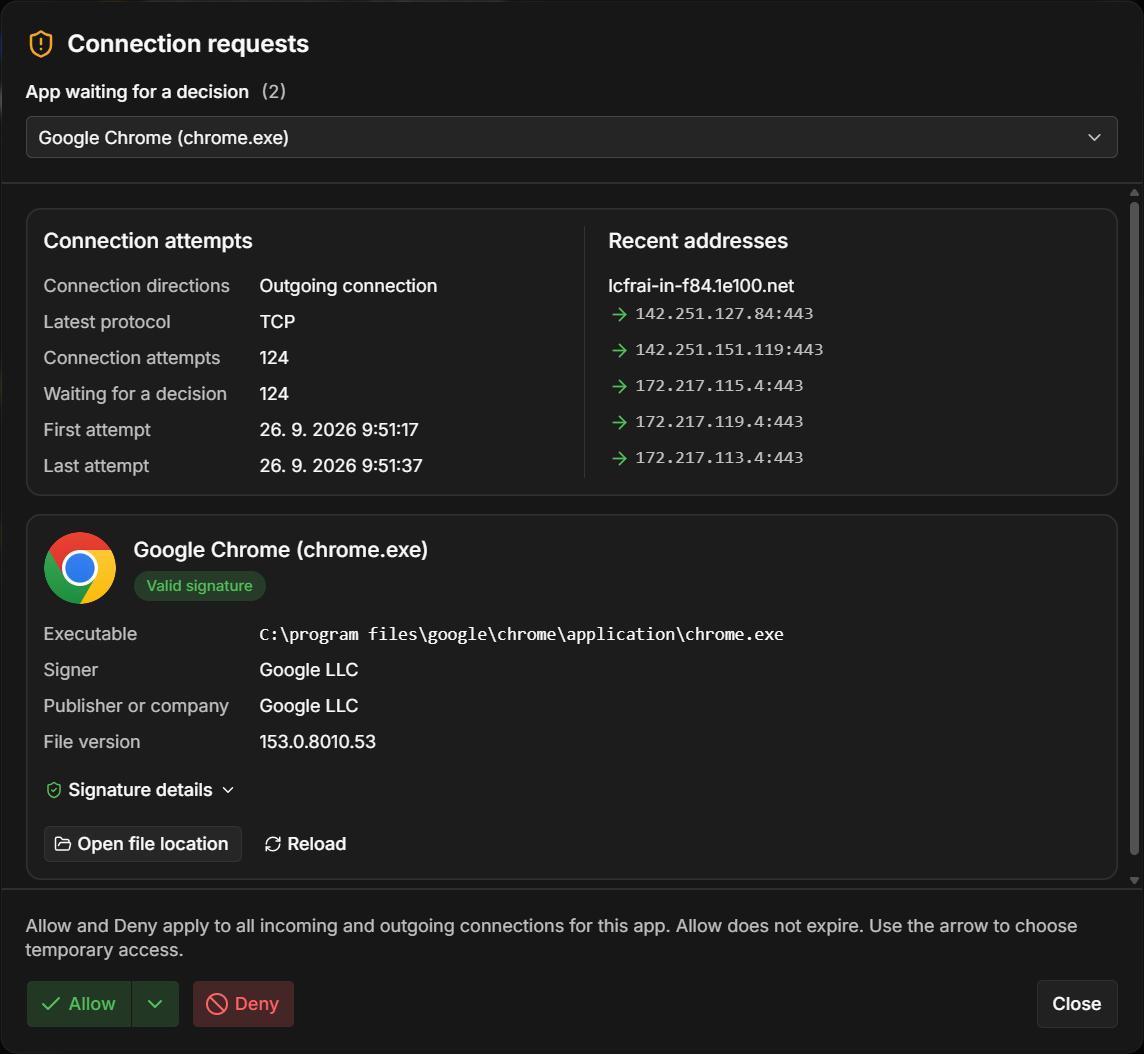
- Allow allows the app. The arrow next to it offers temporary access.
- Deny blocks the app.
- Close closes the window without a decision.
Pending requests
The Pending requests tab lists every app that is waiting for a decision. To open it, choose Apps in the sidebar and then Pending requests at the top right of the Apps page. The amber number next to Apps in the sidebar shows how many requests are waiting.

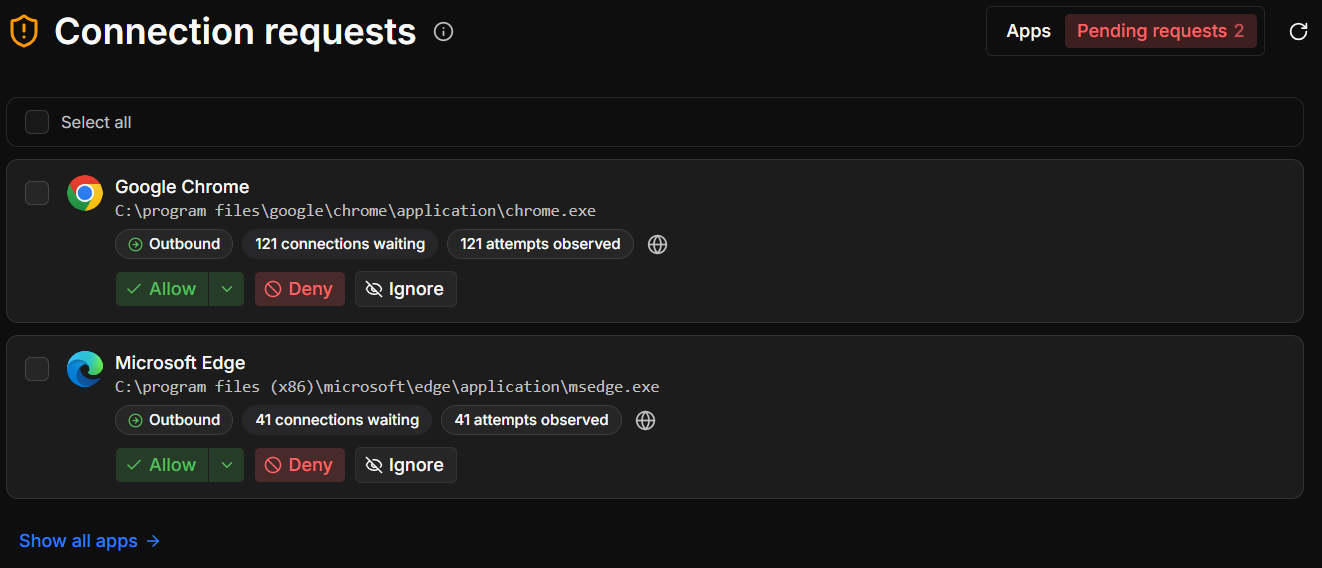
Select requests with their check boxes, or use Select all, to answer several at once.
| Action | What it does |
|---|---|
| Allow | Allows the app. The arrow offers temporary access. |
| Deny | Blocks the app |
| Ignore | Removes the request without a decision. The app's waiting connections are blocked and NetworkTuna asks again on its next attempt. |
| Dismiss | Removes the request of an app that no longer exists |
When the default firewall action is Block, apps that are blocked by default do not wait here. Allow them on the Apps page. An app set to Ask still waits here. If its other direction was blocked by default, its request is marked Outbound blocked or Inbound blocked.
If you do not answer
A held connection waits at most 60 seconds. After that, it is blocked, but the request stays in Pending requests until you decide.
While the NetworkTuna app is not running, nobody can answer, so NetworkTuna does not hold the connection. It allows it once by default, or blocks it. See When NetworkTuna can't ask you.