
Documentation menu
Watched services
Some services give other computers access to a PC, its files or its data: file sharing (SMB), Remote Desktop (RDP), remote access (SSH), web servers and databases. NetworkTuna watches connection attempts to these services. When a device on your network tries to reach one of them and Windows blocks the attempt, NetworkTuna records it and tells you, although Windows itself shows no notice.
The events appear on the Security Events page. The settings are in Settings › Security › Detections, under Port and service detections.
What NetworkTuna reports
The event is called Blocked attempts to reach followed by the service, such as Blocked attempts to reach File sharing (SMB). It shows the protocol and port, such as TCP port 445, and says how many attempts Windows blocked and in what time.
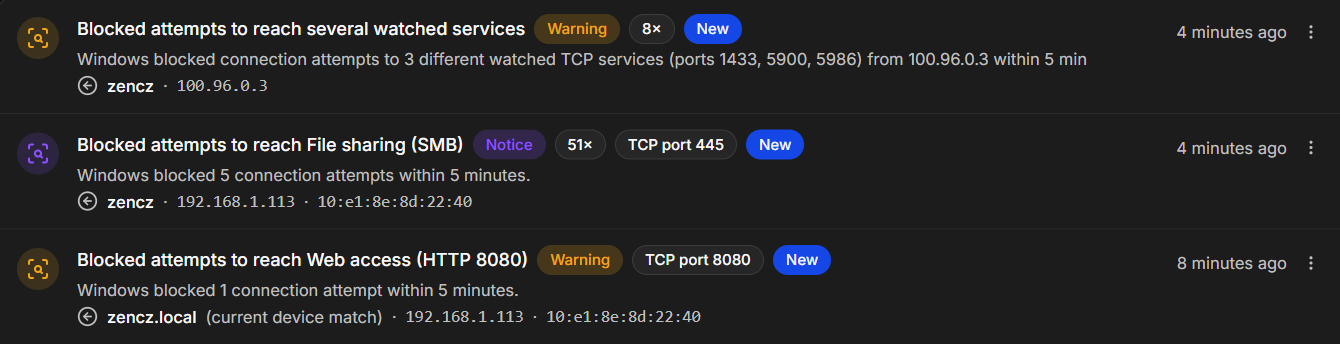
How serious the event is depends on the service's detection level:
- High: one blocked attempt from a device is a Warning. Most PCs have no reason to receive these connections from other devices.
- Normal: other devices contact these services during ordinary network browsing, so a few attempts are normal. After 3 blocked connection attempts from one device within 5 minutes, NetworkTuna shows a Notice. At 8 times that limit, 24 attempts, it shows a Warning.
When one device tries at least 3 different watched TCP services within 5 minutes, NetworkTuna reports Blocked attempts to reach several watched services as a Warning, even if no single service reached its own limit.
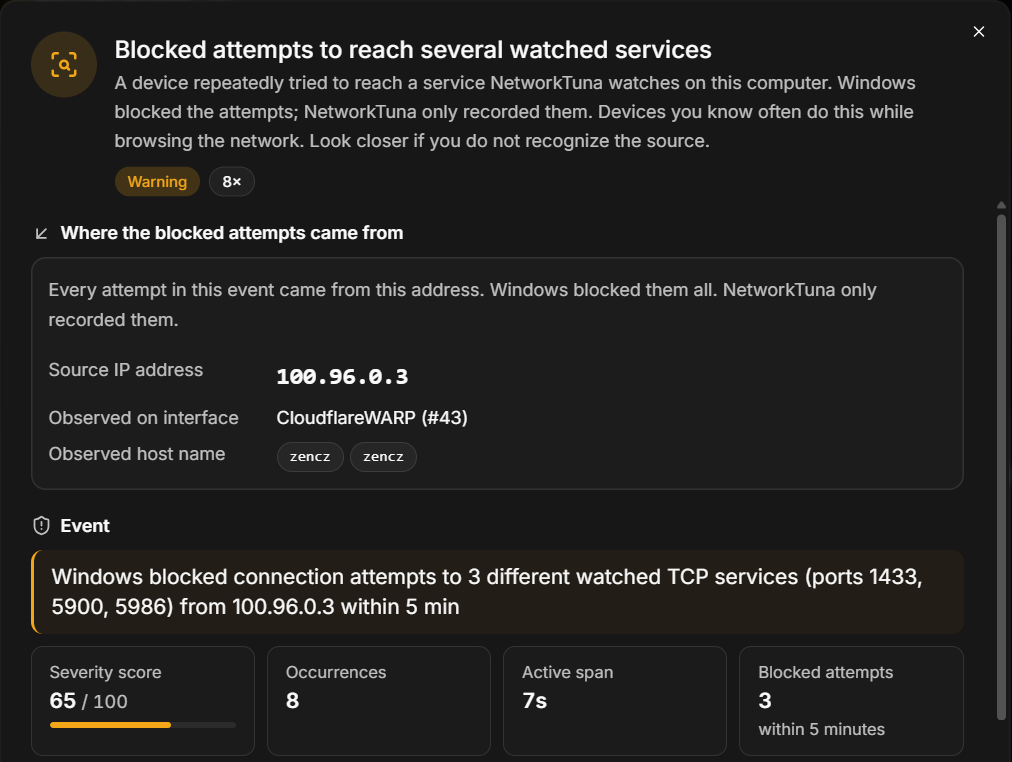
For TCP, NetworkTuna counts connection attempts: the repeated packets of one failed attempt count once. For UDP it counts packets, because one UDP program sends many packets. A Normal UDP service shows a Notice after 25 packets and a Warning after 200.
A notice appears in the list, but it shows no notification and does not change the status of the Security Events page.
Services NetworkTuna watches
NetworkTuna watches these services from the start. You can change the level of each service, turn it off, and add your own.
| Service | Protocol and port | Level | Who usually contacts it |
|---|---|---|---|
| File transfer (FTP) | TCP 21 | High | Unencrypted file transfer. Rarely used on home networks today. |
| Remote access (SSH) | TCP 22 | High | A person, an admin tool or a scanner. Windows PCs do not try it on their own. |
| Remote access (Telnet) | TCP 23 | High | Unencrypted remote command line. Almost nothing legitimate uses it anymore. |
| Web access (HTTP) | TCP 80 | High | Browsers and scanners, and sometimes smart TVs, media players and discovery tools. |
| Windows RPC | TCP 135 | Normal | Other Windows PCs and management tools, during discovery and remote administration. |
| File sharing, legacy (NetBIOS) | TCP 139 | Normal | Older Windows file and printer sharing, still tried by Windows PCs, NAS devices and network scanners. |
| Web access (HTTPS) | TCP 443 | High | Browsers, discovery tools and scanners. |
| File sharing (SMB) | TCP 445 | Normal | Other Windows PCs, NAS devices, phones and scanners, while browsing the network or reconnecting mapped drives. |
| Windows name lookup (NetBIOS) | UDP 137 | Normal | Windows PCs that look for each other by name. |
| Database (Microsoft SQL Server) | TCP 1433 | Normal | Database clients and management tools only. |
| Database (MySQL) | TCP 3306 | High | Database clients and management tools only. |
| Remote Desktop (RDP) | TCP 3389 | Normal | People, remote support tools and scanners, not ordinary network browsing. |
| Screen sharing (VNC) | TCP 5900 | Normal | People, remote support tools and scanners. |
| PowerShell remoting (WinRM) | TCP 5985 | Normal | Administrators and management tools. |
| PowerShell remoting (WinRM over HTTPS) | TCP 5986 | Normal | Administrators and management tools. |
| Web access (HTTP 8080) | TCP 8080 | High | Browsers and scanners. Development servers, proxies and some devices use this port. |
| Web access (HTTPS 8443) | TCP 8443 | High | Browsers and scanners. Device dashboards and management consoles use this port. |
Which attempts count
- Only blocked attempts. Windows blocked the attempt because no app on this PC was listening on the port, or a firewall rule refused the connection. NetworkTuna only records the attempts. It does not block them itself.
- Only attempts from nearby devices. The device is on your local network or uses shared address space 100.64.0.0/10. Routine probes from the public Internet do not create events. See Attempts from nearby devices.
- No background traffic. NetworkTuna leaves out known background traffic and replies to this PC's own connections.
A connection that Windows allowed is not a blocked attempt. The This computer panel on the Overview shows current incoming connections to services such as SSH and Remote Desktop, for example "Remote access (SSH) has an incoming connection".
What to do
Look at where the attempts came from: the device name, IP address and hardware (MAC) address in the event.
- A notice from a device you know, such as another PC or a NAS in your home, is usually ordinary network browsing. Mark it as reviewed, or mute it if it keeps coming back.
- A warning about remote access, such as SSH, Telnet or Remote Desktop, from a device you do not recognize deserves a closer look. Find the device in your router's list of connected devices or on the Devices page in NetworkTuna.
Windows blocked the attempts, so they did not reach the service. The event tells you that a device tried, how often and when.
Settings
The settings are in Settings › Security › Detections, under Port and service detections:
- Enable port and service detections turns all watched-service events on or off.
- Normal sensitivity limits set when a Normal service shows a notice. Open them with the arrow at the right end.
- High sensitivity explains what the High level does.
- Services lists the built-in and custom services. Open the list with the arrow at the right end.
Each service in the list shows its name, protocol and port, and what it is normally used for. The list next to it sets its level, Normal or High, and the switch turns it on or off. The arrow at the right end opens Effective behavior, which explains what the level does.
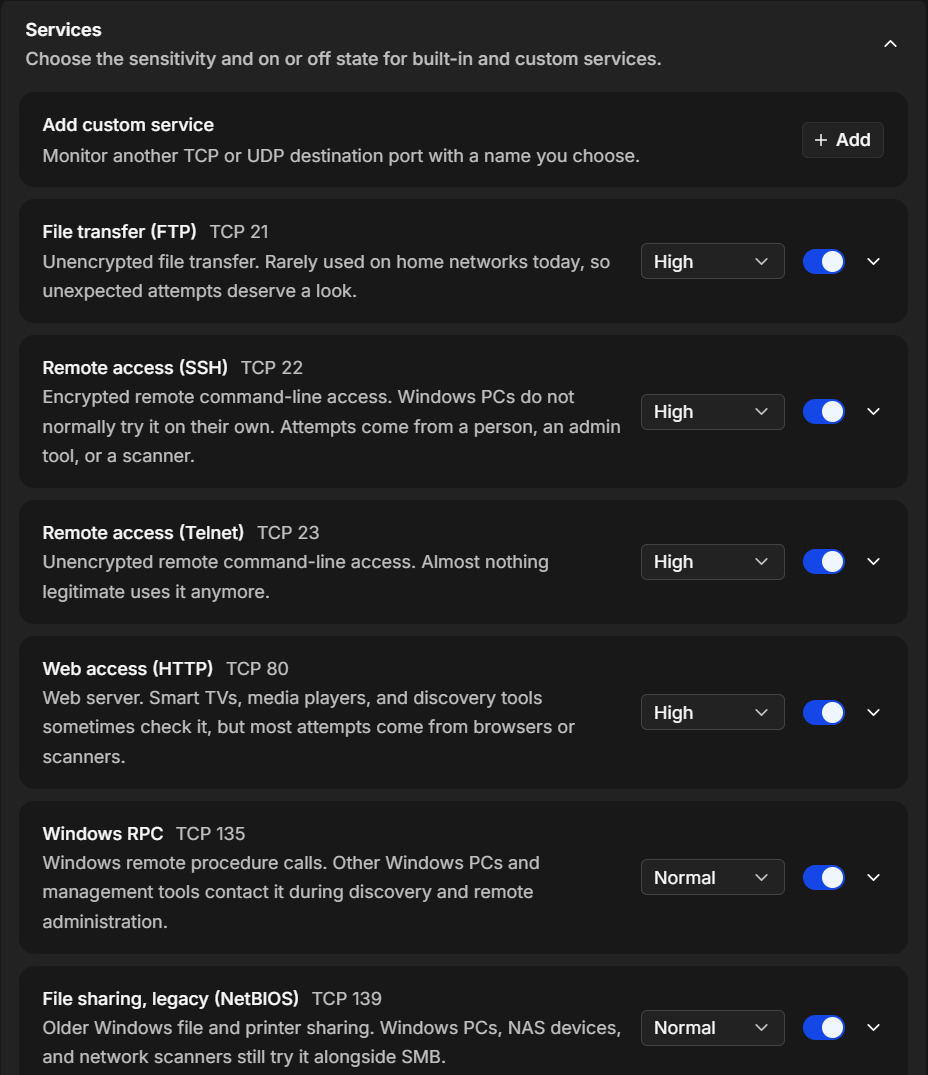
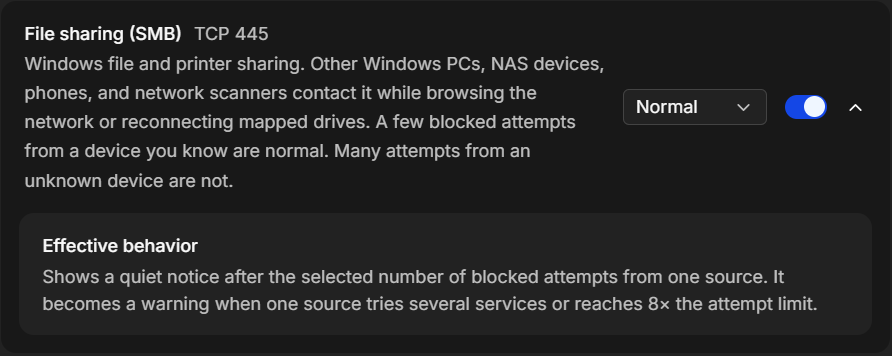
These are the Normal sensitivity limits:
| Setting | Default | Range |
|---|---|---|
| TCP attempts per service | 3 attempts | 3 to 1,000 |
| UDP attempts per service | 25 packets | 10 to 1,000 |
| Distinct TCP services | 3 services | 2 to 12 |
| Time window | 300 seconds (5 minutes) | 10 to 1,800 seconds |
A Normal service shows a warning at 8 times its attempt limit. Distinct TCP services sets how many different watched TCP services one device must try before NetworkTuna reports Blocked attempts to reach several watched services.
Turn off one service
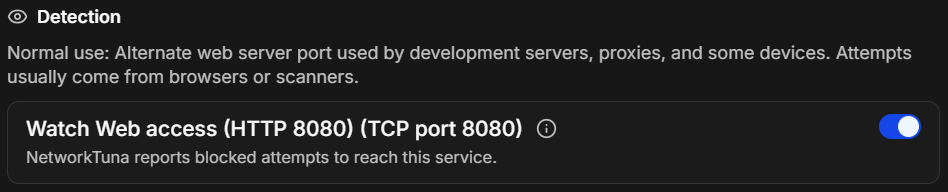
To stop events about one service, open one of its events and turn off the Watch switch in the Detection section. The section also says what the service is normally used for. The switch only stops new events for that service. Other services and earlier events stay, and nothing changes in what Windows blocks.
Custom services
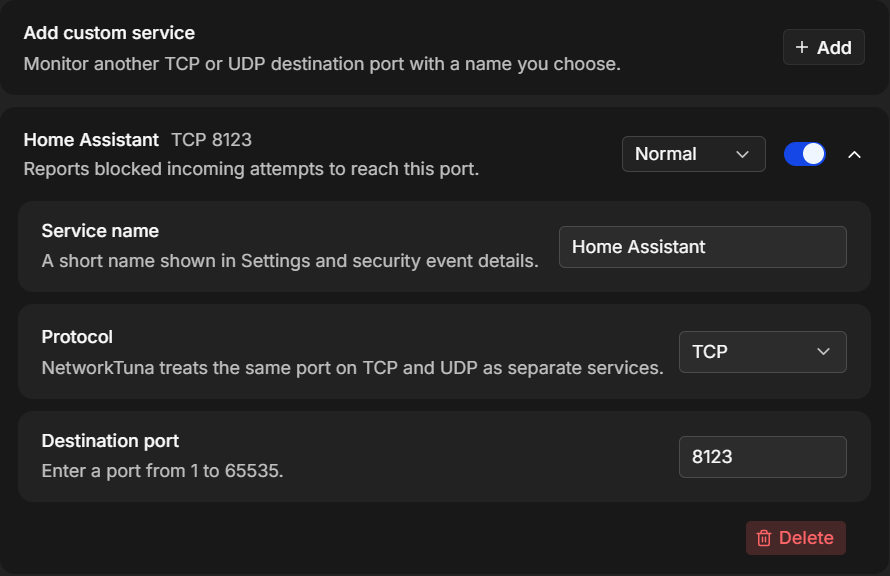
To watch a port that is not in the list, open Services and choose Add next to Add custom service at the top of the list. A new service opens:
- Enter a Service name, up to 64 characters. It appears in Settings and in the events.
- Choose the Protocol, TCP or UDP. The same port on TCP and on UDP counts as two services.
- Enter the Destination port, from 1 to 65535.
- Choose Save.
Then set its level and switch like those of any other service.
You can add up to 128 custom services. To remove one, open it and choose Delete. Earlier events about it stay. Built-in services cannot be deleted or renamed, but you can turn each of them off or change its level.