
Documentation menu
Router monitoring
Your router connects the devices in your home to the Internet. If someone changes its settings or replaces it, all your traffic can be affected. NetworkTuna can check the router this PC uses and tell you when the router's remote access or its security keys change. It works on Wi-Fi and on wired networks.
Router monitoring is optional. It is off until you turn it on.
Turn on router monitoring
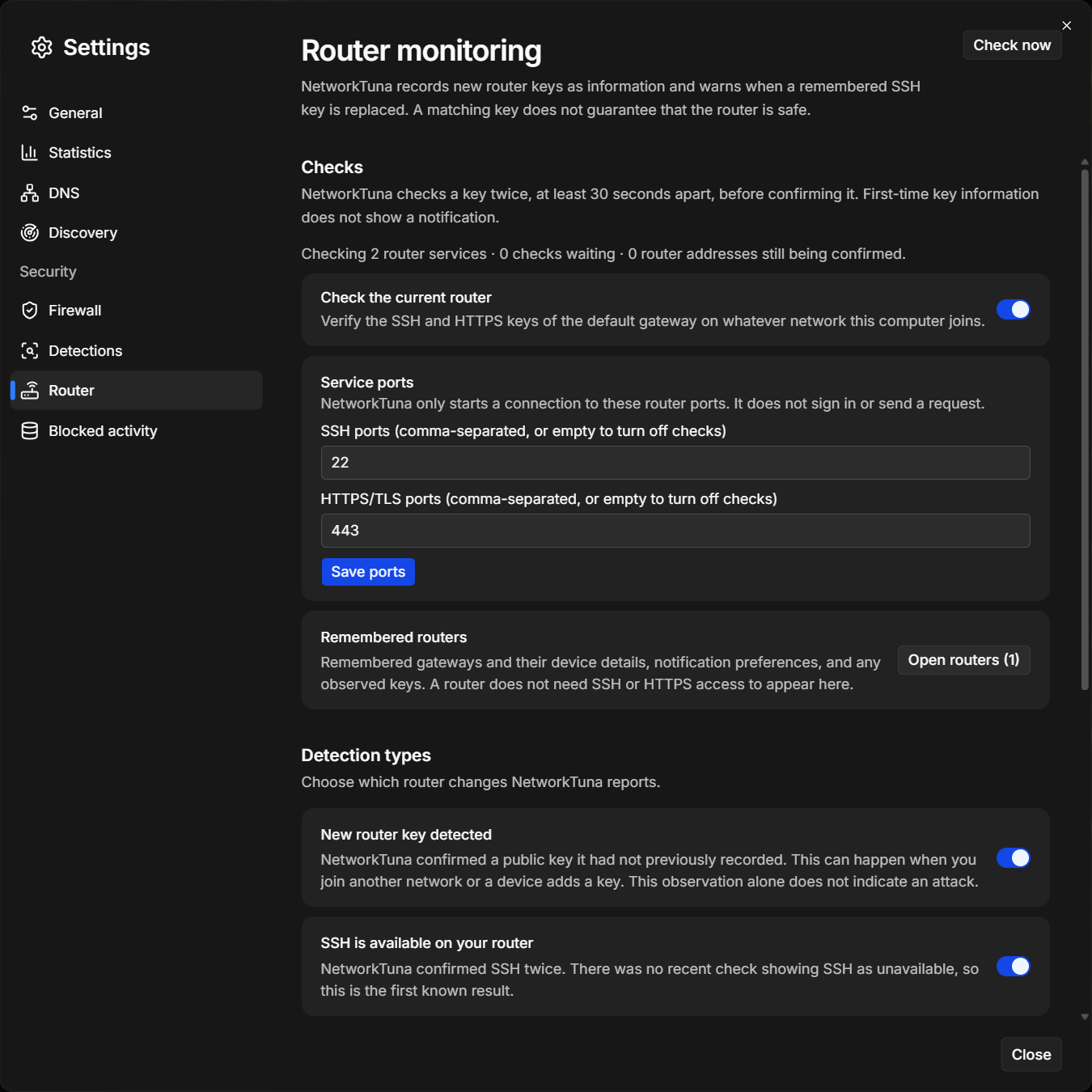
- Choose Settings in the sidebar, then Router under Security.
- Turn on Check the current router.
From then on, NetworkTuna checks the default gateway, which is usually your router, of whatever network this PC joins. The line above the switch says how many router services it checks and how many checks are waiting. Check now at the top right of the page runs the checks right away.
What NetworkTuna checks
Routers are often managed through SSH, a remote command line, and through a web page protected by HTTPS. Both present a security key that stays the same until someone changes it, resets the router or replaces it. NetworkTuna remembers these keys and compares them on every check.
- SSH: NetworkTuna connects just far enough to receive the router's SSH key. It does not sign in, and it sends no user name or password.
- HTTPS: NetworkTuna reads the key of the router's certificate. It sends no web request and does not sign in. It does not check whether the certificate is trusted or revoked, only whether the key changed.
NetworkTuna recognizes a router by its hardware (MAC) address and remembers its keys for each port. The first time it sees a router, it remembers the router's keys without an alert.
After this PC joins a network, NetworkTuna waits 30 seconds for the connection to settle, then checks about every five minutes. It confirms every result in two separate connections, at least 30 seconds apart, so one unusual answer does not raise an event.
Service ports
NetworkTuna checks SSH on port 22 and HTTPS on port 443. If your router uses other ports, enter them in SSH ports and HTTPS/TLS ports under Service ports, separated by commas, and choose Save ports. Leave a list empty to turn off that kind of check. You can enter up to 16 ports. NetworkTuna only starts a connection to these ports. It does not sign in or send a request.
Detection types
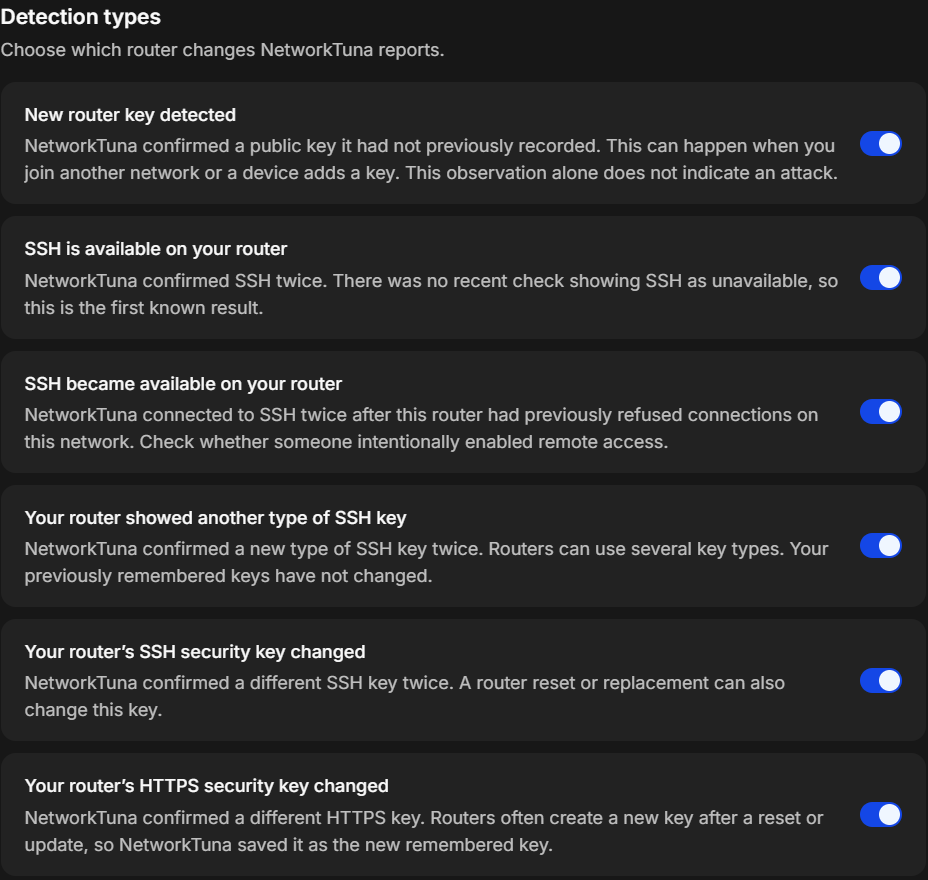
Under Detection types, further down the page, choose which router changes NetworkTuna reports. There is a switch for each of the router events. Turning a type off stops new events of that type. It does not delete earlier events or remembered keys.
Router events
| Event | Level | What it means |
|---|---|---|
| SSH became available on your router | Warning | The router answered SSH after it had refused SSH connections on this network within the previous 24 hours. Check whether someone turned on remote access. |
| Your router’s SSH security key changed | Warning | The router showed a different SSH key, confirmed twice. A router reset, a firmware update or a new router can also change it. |
| SSH is available on your router | Info | The first result for this router: SSH answers, and NetworkTuna has no earlier check that found it closed. |
| Your router showed another type of SSH key | Info | Routers can have several types of SSH keys. The keys NetworkTuna remembered did not change. |
| Your router’s HTTPS security key changed | Info | Routers often create a new HTTPS key after a reset or an update, so NetworkTuna saved the new key as the remembered key. |
| New router key detected | Info | A key NetworkTuna had not seen before, for example after you joined another network. |
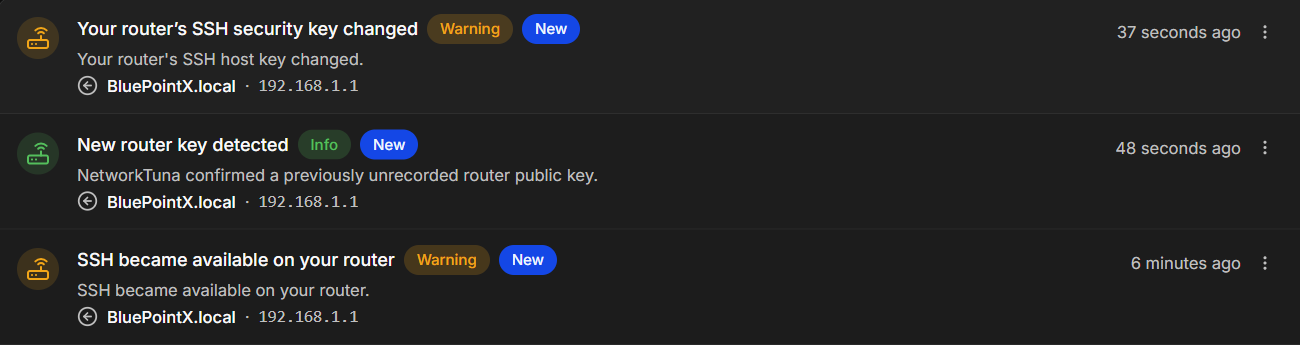
The warnings show a notification.
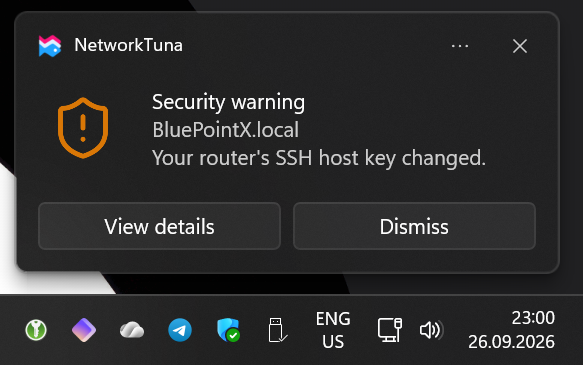
Review a changed SSH key
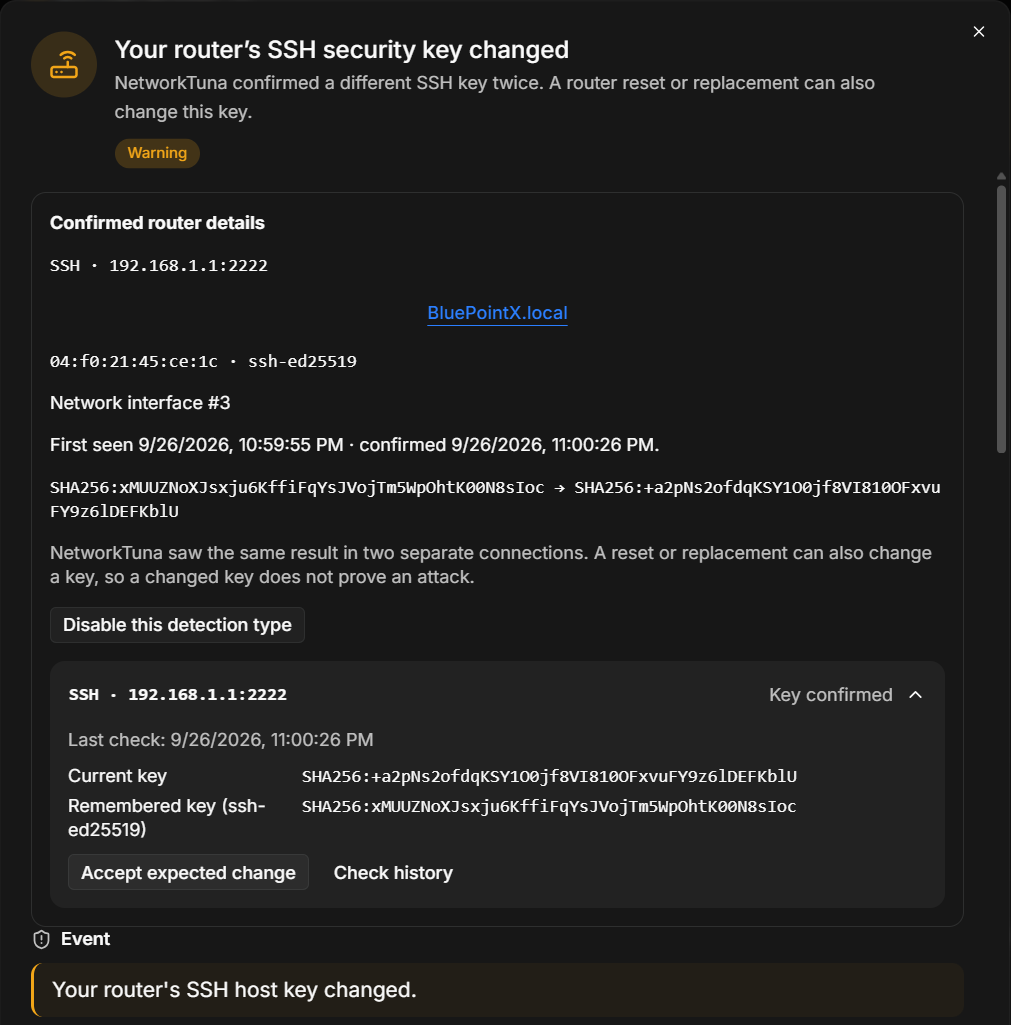
When the router's SSH key changes, NetworkTuna warns you and keeps the old key as the remembered key until you decide. Open the event to see the evidence. Confirmed router details shows the service, such as SSH · 192.168.1.1:22, the router, its hardware (MAC) address and key type, when NetworkTuna first saw the new key and when it confirmed it, and the old and the new key. The row of the service below it shows the Current key and the Remembered key.
- If you expected the change, for example because you reset the router, updated its firmware or replaced it, choose Accept expected change in that row. The current key becomes the remembered key. Then mark the event as reviewed: accepting the key does not do that for you.
- If you cannot explain the change, sign in to your router's admin page and check its settings and firmware, or ask whoever manages your network.
Check history in the same row lists the earlier checks of this key. Disable this detection type turns off this kind of router event, like the switch under Detection types.
Remembered routers
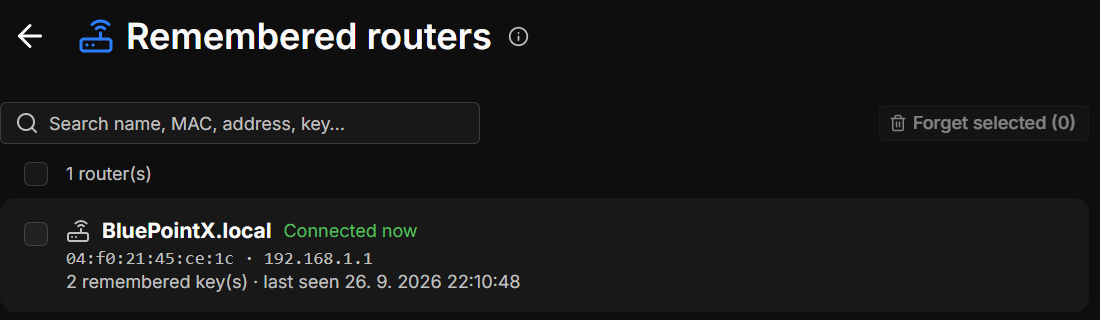
The Remembered routers page lists every router NetworkTuna has checked and the keys it remembers for it. To open it, go to Settings › Security › Router and choose Open routers. The number on the button shows how many routers NetworkTuna remembers.
- Search by name, MAC address, IP address or key.
- Each router shows its name, hardware (MAC) address, IP address and how many keys NetworkTuna remembers for it. Connected now marks the router this PC uses at the moment.
- To remove routers you no longer use, select them and choose Forget selected.
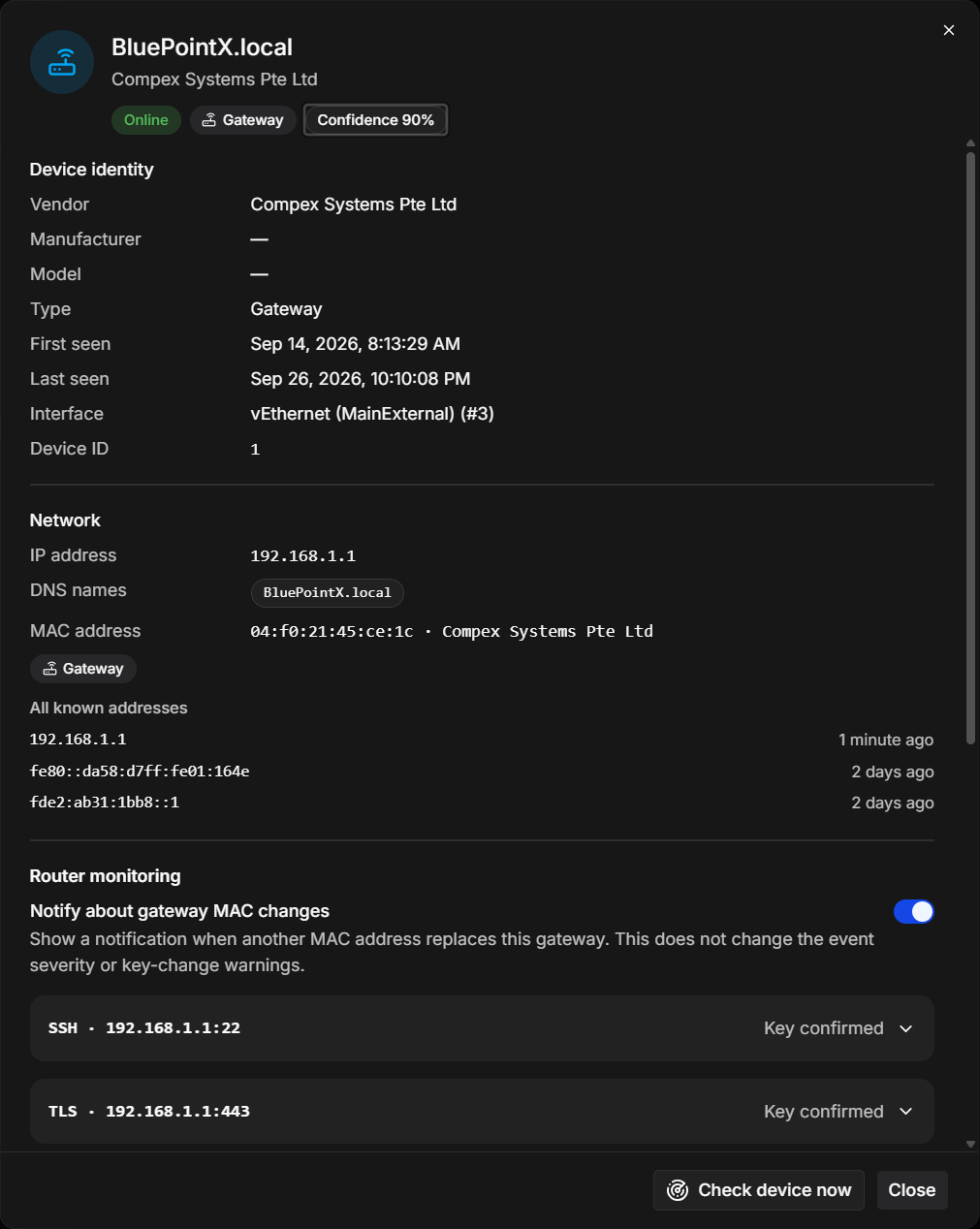
Choose a router to open its details. Besides what NetworkTuna knows about the device, such as its vendor, addresses and when it was first and last seen, the Router monitoring section shows:
- Notify about gateway MAC changes. See When the router's hardware address changes.
- One row for each checked service, such as SSH · 192.168.1.1:22, with the result of the last check, such as Key confirmed. Open the row for the remembered key and the check history. When a changed key waits for your review, Accept expected change is there too.
Check device now at the bottom runs a check right away.
When you forget a router, NetworkTuna forgets its keys and check history. If you are connected to that router, it saves the current keys again as the expected keys. You cannot forget a router you are connected to while a changed key waits for your review: accept the change first.
Router checks on the Overview
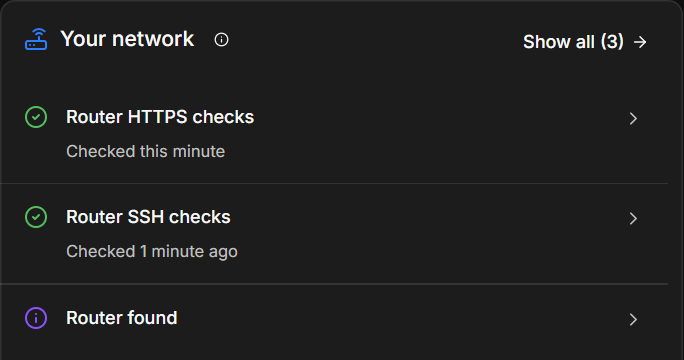
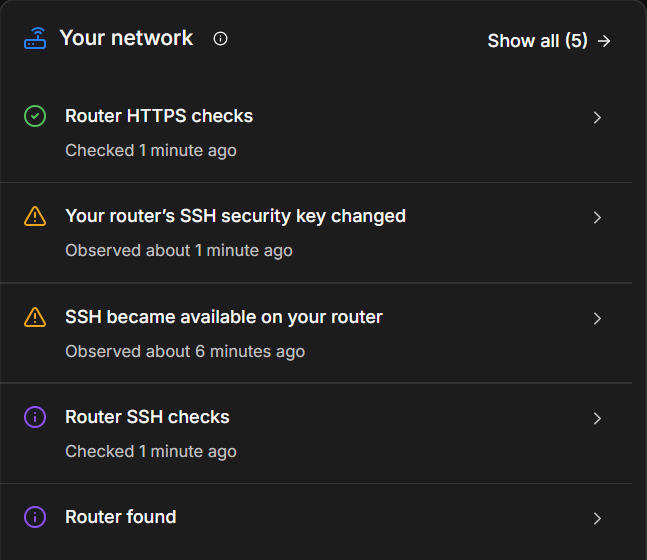
The Your network panel on the Overview shows the state of the router checks. A green check next to Router SSH checks or Router HTTPS checks means that the current key matches the remembered key. When a key differs, the row asks you to open its details and review it. The panel also says when the router refused a check, when checks are waiting, and when router monitoring is off.
When the router's hardware address changes
NetworkTuna also notices when the hardware (MAC) address behind your router's IP address changes. It reports Gateway MAC changed as a notice. A new router, a backup router taking over, or a router that changes its address on purpose can cause this. The change alone does not mean an attack. This check does not need router monitoring. It comes from what NetworkTuna sees on the local network.
Whether the change shows a notification is set for each router, with Notify about gateway MAC changes in the router's details on the Remembered routers page. It is on for routers with a hardware address assigned by the manufacturer, and off for routers with a locally administered address, which is often random.
Two devices that claim your router's address at the same time are a different and more serious finding. See Local network changes.
Limits
- Checks run about every five minutes, so a change that lasts only a few minutes can be missed.
- If the router uses settings that NetworkTuna does not support, or a connection does not finish, NetworkTuna cannot confirm the result, and no event is created.
- A matching key does not prove that the router is safe. NetworkTuna does not inspect the router's firmware, look for vulnerabilities, sign in, or see who else connected to the router.
- Router monitoring does not measure the router's traffic or see the traffic of other devices.