
Documentation menu
Port scan detection
A port scan is a quick series of connection attempts to many ports of one computer. Scanning tools do this to find services they can connect to. NetworkTuna notices when one device tries many different ports on this PC in a short time and Windows blocks the attempts.
The events appear on the Security Events page. The settings are in Settings › Security › Detections.
What NetworkTuna reports
| Event | When, with the default Medium sensitivity | Level |
|---|---|---|
| Blocked attempts to reach several ports | One device tried at least 6 different TCP ports within 30 seconds. | Warning |
| Port scan detected | One device tried at least 15 different TCP ports within 60 seconds, or at least 25 different UDP ports within 90 seconds. | Warning |
Both are warnings, so NetworkTuna also shows a notification.
The summary of the event says what the device did, for example "TCP port scan from 192.168.1.113: 30 distinct blocked ports (42001-42030) within 60s". The line below it names the device, with its IP address and hardware (MAC) address.
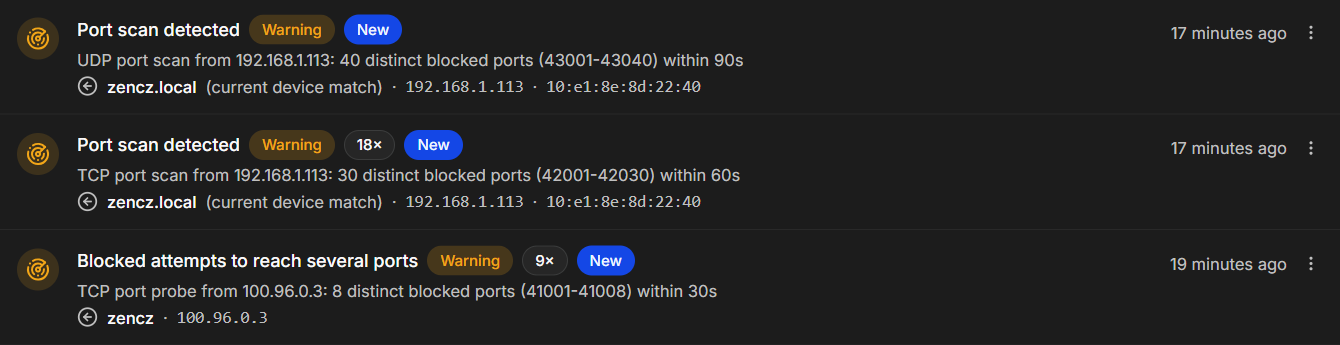
NetworkTuna keeps one event per device and protocol, TCP or UDP. When the same device goes on, the event counts each new occurrence, and attempts to several ports that grow into a scan become Port scan detected.
Which attempts count
- Only blocked attempts. Windows blocked the attempt because no app on this PC was listening on the port, or a firewall rule refused the connection. A port that accepted the connection does not count.
- Only attempts from nearby devices. The device is on your local network or uses shared address space 100.64.0.0/10. Routine probes from the public Internet do not create events. See Attempts from nearby devices.
- Different ports. A device that tries one port again and again is not scanning. Repeated attempts to reach a service are a separate detection. See Watched services.
- No background traffic. NetworkTuna leaves out known background traffic and replies to this PC's own connections, so late DNS replies from your router, for example, do not look like a scan.
What to do
Look at where the attempts came from: the device name, IP address and hardware (MAC) address in the event. Open the event for more details.
A port scan from a device you know can be expected. Network inventory and IT management tools, security scanners, and some NAS devices and printers scan the network on purpose. If that is the cause, mark the event as reviewed, or mute it so the device does not notify you again.
If you do not recognize the device, find it in your router's list of connected devices, or on the Devices page in NetworkTuna. Windows blocked the attempts, so they did not reach any service. The scan tells you that something on your network is looking for services, and that is worth understanding.
Sensitivity
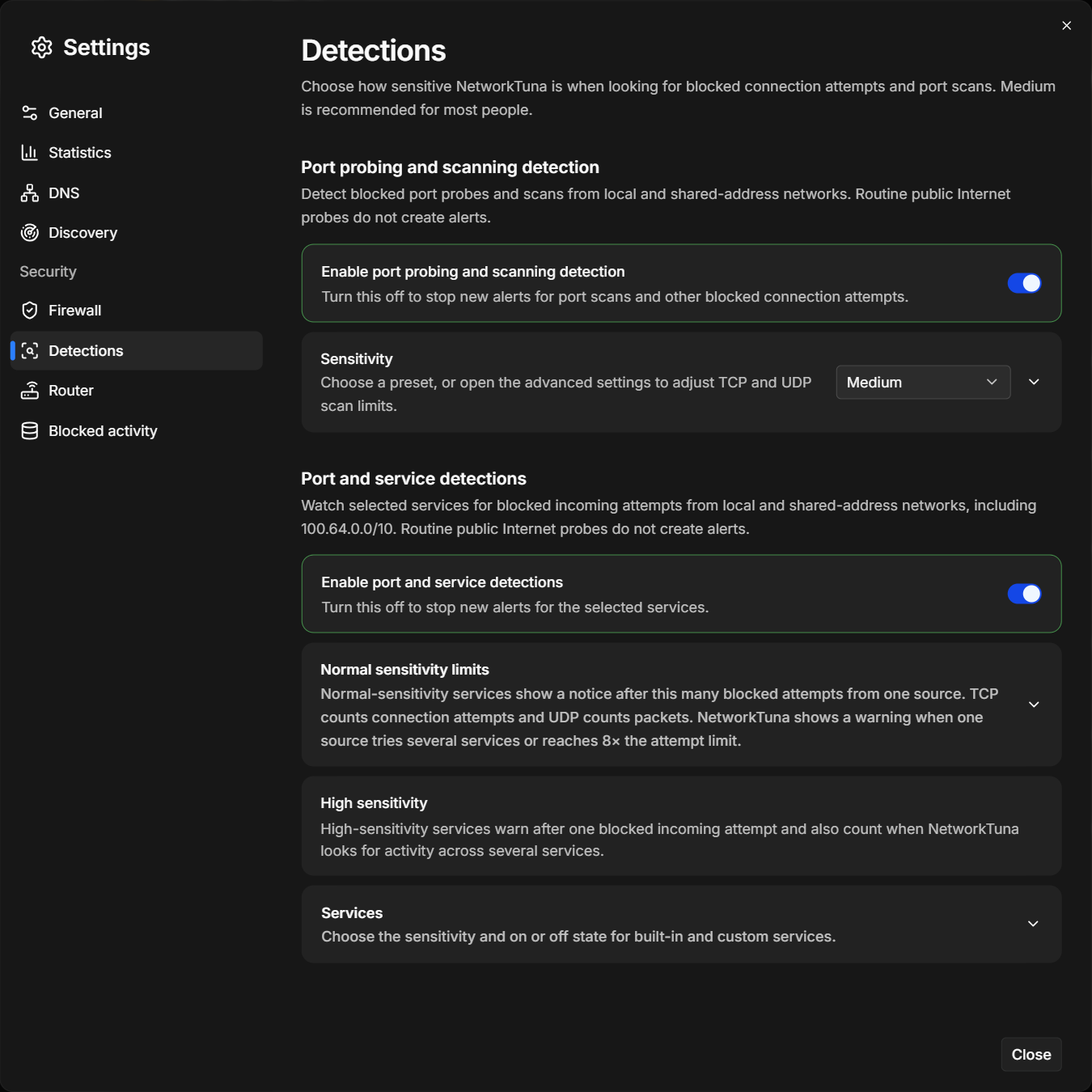
To change the sensitivity, go to Settings › Security › Detections. Under Port probing and scanning detection, choose Low, Medium or High in the list next to Sensitivity. Medium is recommended for most people.
| Preset | Several ports, TCP | Port scan, TCP | Port scan, UDP |
|---|---|---|---|
| Low | 10 ports within 30 seconds | 25 ports within 60 seconds | 50 ports within 60 seconds |
| Medium (default) | 6 ports within 30 seconds | 15 ports within 60 seconds | 25 ports within 90 seconds |
| High | 4 ports within 60 seconds | 10 ports within 120 seconds | 15 ports within 120 seconds |
Low creates fewer events. High also notices slower scans of fewer ports, and creates more events from ordinary network traffic.
Your own limits
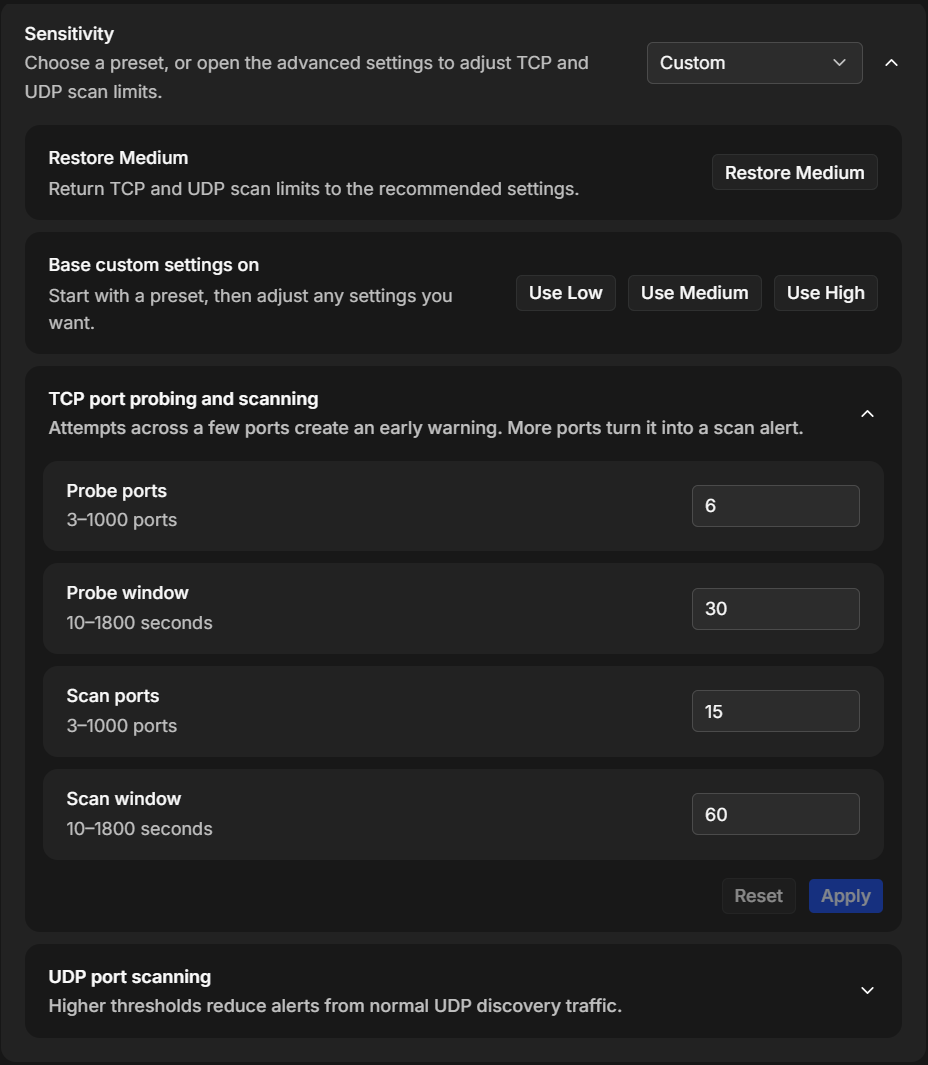
To set your own limits, choose Custom in the Sensitivity list, or open the advanced settings with the arrow at the right end of Sensitivity:
- Base custom settings on fills in the limits of a preset to start from: Use Low, Use Medium or Use High.
- TCP port probing and scanning: Probe ports and Probe window set when NetworkTuna reports attempts to several ports. Scan ports and Scan window set when it reports a port scan.
- UDP port scanning: Scan ports and Scan window. Open the group with the arrow at its right end.
Choose Apply in a group to save its limits. Restore Medium returns to the recommended settings.
TCP limits take 3 to 1,000 ports and UDP limits 10 to 1,000 ports. Windows take 10 to 1,800 seconds. A TCP scan must need more ports than a probe, and its window must be at least as long.
Turn off port scan detection
Turn off Enable port probing and scanning detection to stop new port scan events. Earlier events stay on the Security Events page. Turning detection off does not change what Windows blocks.