
Documentation menu
Firewall settings
To change the app firewall settings, choose Settings in the sidebar, then Security › Firewall.
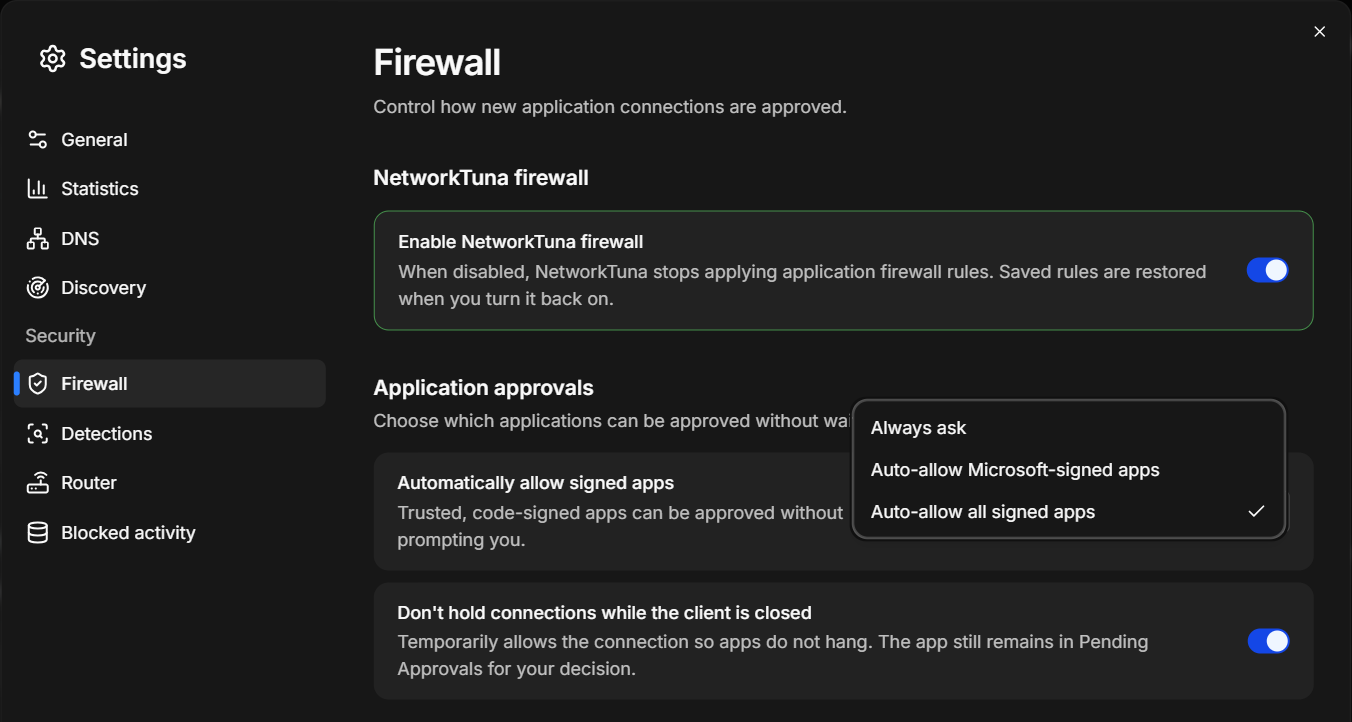
Enable NetworkTuna firewall
Turns the app firewall on or off. It is on by default.
When it is off, NetworkTuna stops applying app firewall settings. Saved settings are restored when you turn it back on. Security monitoring keeps running either way. The same switch is available in the sidebar as NetworkTuna firewall.
Automatically allow signed apps
Decides what happens when an app without a firewall setting tries to connect for the first time.
| Option | Signed apps | Unsigned apps |
|---|---|---|
| Always ask | NetworkTuna asks you | NetworkTuna asks you |
| Auto-allow Microsoft-signed apps | Apps signed by Microsoft are allowed. NetworkTuna asks you about others. | NetworkTuna asks you |
| Auto-allow all signed apps (default) | Allowed | NetworkTuna asks you |
- Only an app with a valid signature can be allowed automatically. NetworkTuna always asks about unsigned apps and apps whose signature is invalid or could not be checked.
- An app that is allowed automatically gets a permanent Allow setting, which you can see and change on the Apps page.
- Apps set to Ask are never allowed automatically.
- Store apps are judged by their package signature.
Don't hold connections while the client is closed
When this is on, NetworkTuna does not hold connections while the NetworkTuna app is closed. The connection is allowed for now so the app does not hang, and the app stays in Pending requests for your decision. It is on by default.