
Documentation menu
Apps
The Apps page lists the apps found on this computer and their firewall settings. To open it, choose Apps in the sidebar. A green number next to Apps counts new apps, and an amber number counts connection requests that are waiting for your decision.
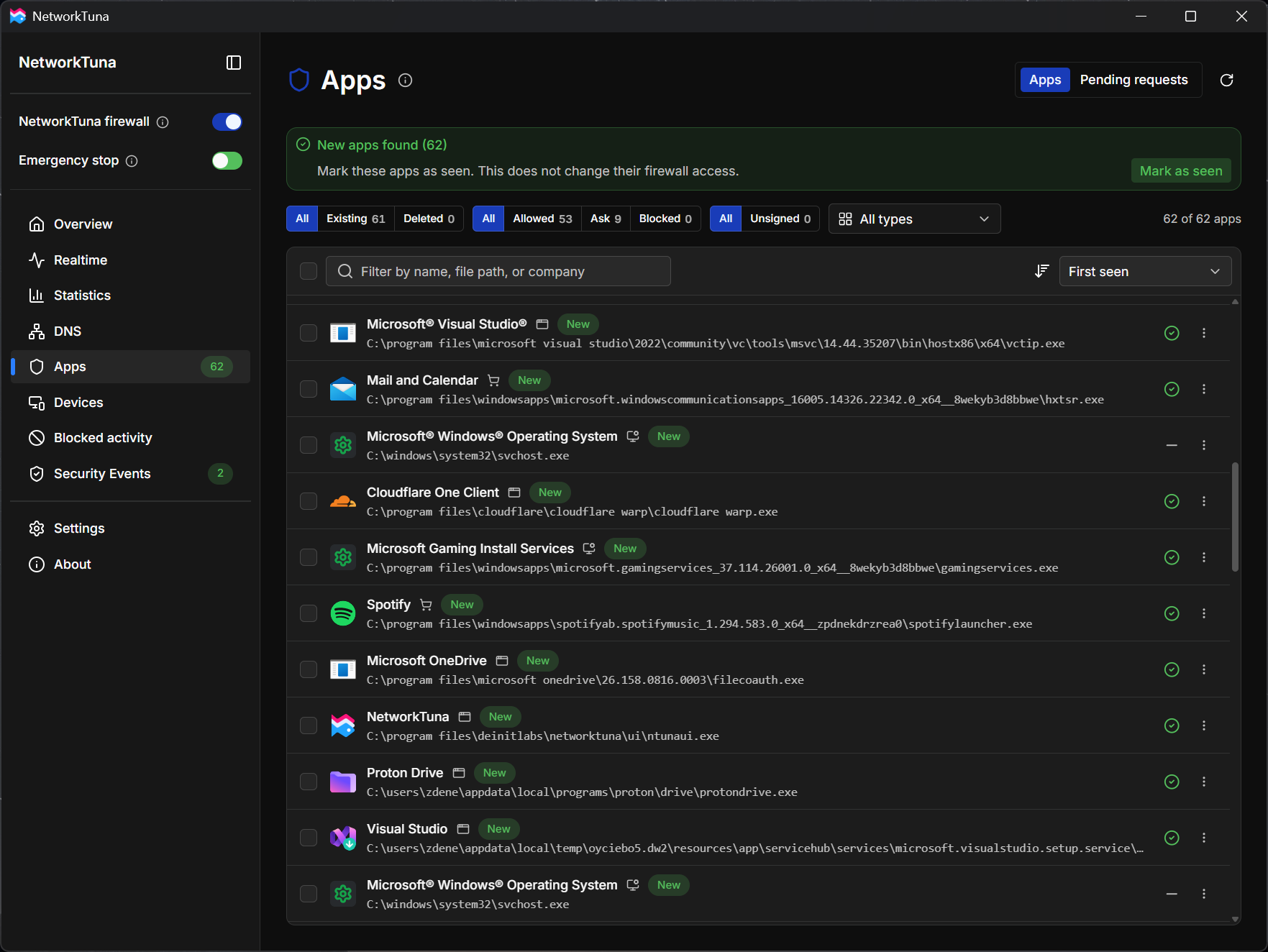
The page has two tabs at the top right: Apps and Pending requests. Pending requests are described in Connection requests.
The app list
Each row shows the app's icon and name, an icon for its app type, its path and, at the right end, its current firewall setting. Apps that NetworkTuna found recently carry a New badge. If an app's file no longer exists, a trash icon marks it as deleted.

Click an app to open its details. Right-click it, or use the ⋮ button, to see the app actions.
How NetworkTuna recognizes an app
NetworkTuna shows these app types:
| App type | Description |
|---|---|
| Win32 app | A regular desktop app |
| Service | A Windows service |
| Store app | An app installed from the Microsoft Store or as a package |
| System | Traffic of Windows itself |
New apps
When NetworkTuna finds apps that you have not seen yet, the page shows a New apps found banner above the filters. Mark as seen clears the New badges. It does not change the apps' firewall access.

Search, filters and sorting
The filters are in a row above the list. The search box and the sort order are at the top of the list. Type in the search box to filter the list by name, file path or company.

| Filter | Options |
|---|---|
| File status | All, Existing, Deleted |
| Firewall setting | All, Allowed, Ask, Blocked |
| Signature | All, Unsigned |
| App type | All types, Win32 apps, Services, Store apps, System |
The Ask filter also includes apps that have no firewall setting yet.
The list can be sorted by name, path, type, file status, firewall setting, product, company, first seen or last seen. By default, the newest apps are at the top.
Changing an app's firewall setting
Click the firewall icon at the right end of an app's row and choose Allow, Ask or Block. You can also change the setting in the app details window. The setting applies to both incoming and outgoing connections. To allow an app only for a while, use Allow for in the app actions.
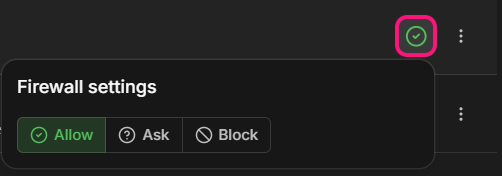
While an app has temporary access, a timer replaces its firewall icon.
See App firewall for what each setting means.
App actions
Right-click an app, or click the ⋮ button at the right end of its row:
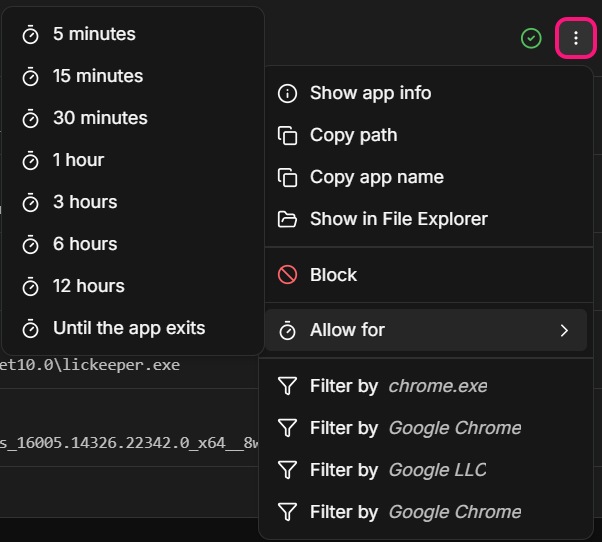
| Action | What it does |
|---|---|
| Show app info | Opens the app details |
| Copy path, Copy app name | Copies the value to the clipboard |
| Show in File Explorer | Opens the app's folder |
| Block, Unblock | Blocks the app, or allows it again |
| Allow for | Allows the app for a limited time |
| Remove deleted app | Removes an app whose file no longer exists |
| Filter by | Filters the list by the app's file name, product, company or description |
App details
The app details window shows everything NetworkTuna knows about an app. To open it, click an app in the list or choose Show app info in the app actions. The same window opens from the Realtime and Statistics pages.
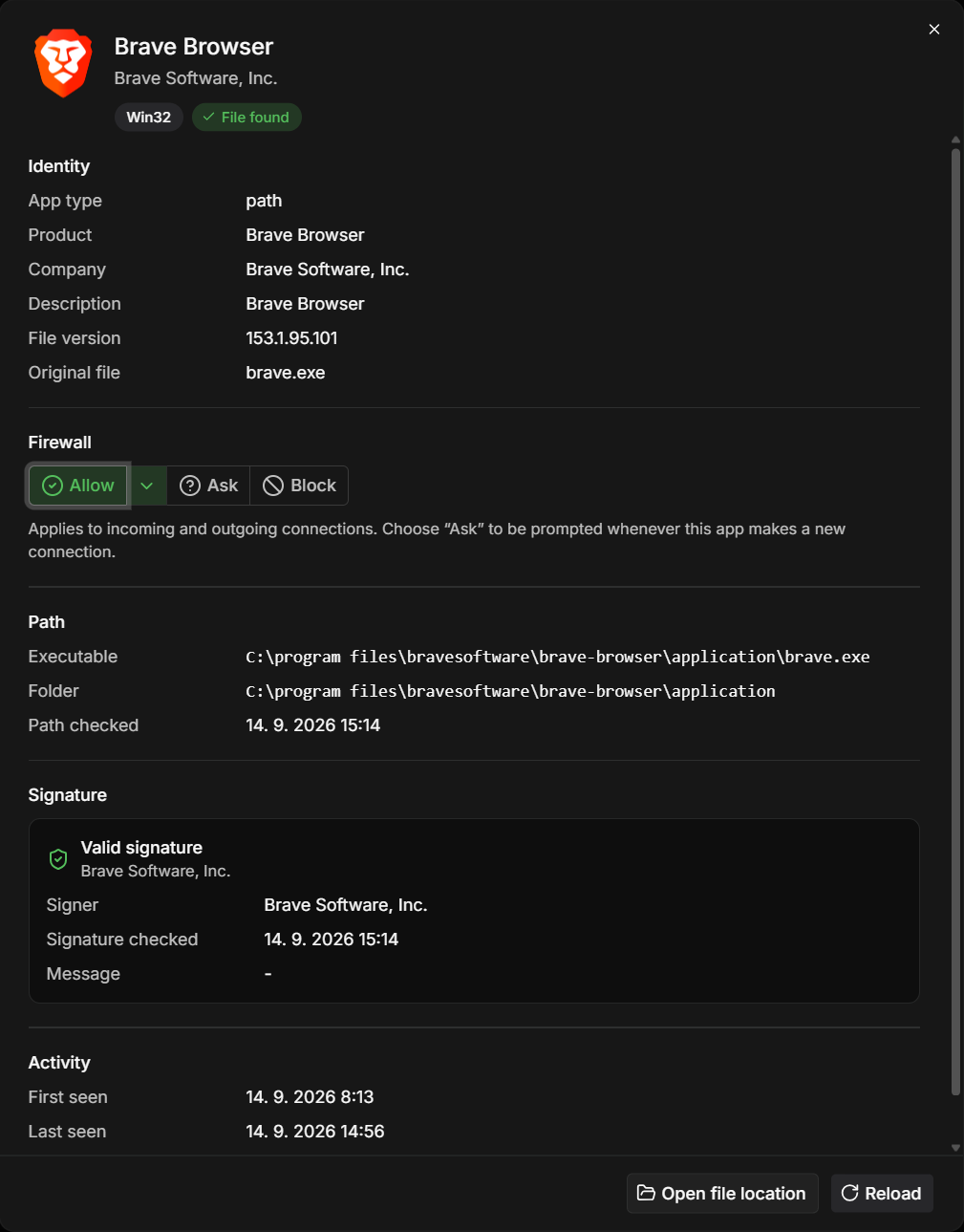
- Identity: app type, product, company, description, file version and original file name.
- Firewall: the app's firewall setting and any temporary access.
- Path: the executable, its folder and when the path was last checked.
- Signature: whether the app is signed, who signed it and when the signature was checked.
- Activity: when the app was first and last seen.
- Platform: service and package details, when they apply.
Open file location opens the app's folder. Reload refreshes the details. NetworkTuna also checks the app's signature again when you open the window.
Deleted apps
An app stays in the list after its file is deleted, so you can still see its history. To clean up the list, select the deleted apps and choose Remove deleted app. NetworkTuna removes only apps whose files are really gone. Their traffic history is kept.