
Documentation menu
App firewall
NetworkTuna's app firewall decides which apps on this PC can use the network. It works alongside Microsoft Defender Firewall or your preferred Windows firewall and does not change that firewall's rules.
Firewall settings
Every app has one firewall setting, which applies to both incoming and outgoing connections:
| Setting | What happens |
|---|---|
| None | You have not chosen yet. NetworkTuna handles new connections automatically: it can allow signed apps, or it asks you. |
| Allow | The app can connect. |
| Ask | NetworkTuna asks you whenever the app makes a new connection. |
| Block | The app cannot connect. |
You can change the setting on the Apps and Realtime pages, in the app details window, or when NetworkTuna asks you.

Apps without a setting
When an app without a setting tries to connect, NetworkTuna checks its signature. Depending on Automatically allow signed apps, it allows a signed app on its own. Otherwise, it holds the connection and asks you.
Temporary access
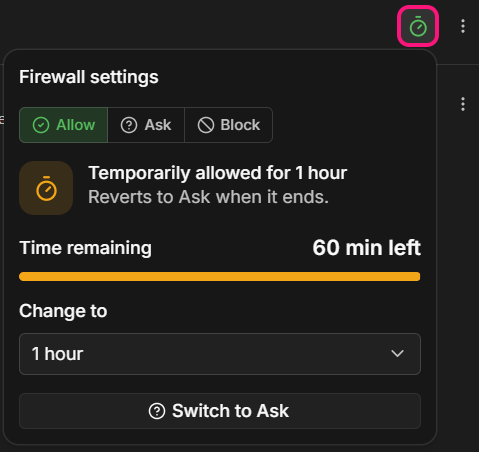
Allow for allows an app for a limited time: 5, 15 or 30 minutes, 1, 3, 6 or 12 hours, or until the app exits. When the time is up, the app's saved setting applies again. You find Allow for in the app actions on the Apps page, and behind the arrow next to Allow in the app details window and in connection requests.
Temporary access ends early when the NetworkTuna service restarts, when the PC restarts, or when the app firewall is turned off and on again.
On the Apps page, an app with temporary access shows a timer instead of its firewall icon. Click the timer to see how much time is left, change the duration or switch the app to Ask.
What the app firewall does not control
- Connections within this PC (loopback) are never blocked and never cause a prompt.
- Traffic of Windows itself (System) cannot have its own firewall setting.
Turning the app firewall off
Use the NetworkTuna firewall switch at the top of the sidebar, or Enable NetworkTuna firewall in Settings.
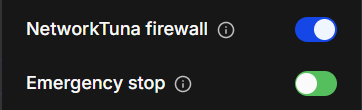
While the app firewall is off, NetworkTuna does not apply app firewall settings. Your saved settings are restored when you turn it back on.
Turning the app firewall off does not stop security monitoring.
Emergency stop
Emergency stop, directly below the NetworkTuna firewall switch in the sidebar, blocks all network traffic of this PC, including apps that are allowed. It stays on after a restart until you resume traffic.